Overview / USB Stick
USB Stick
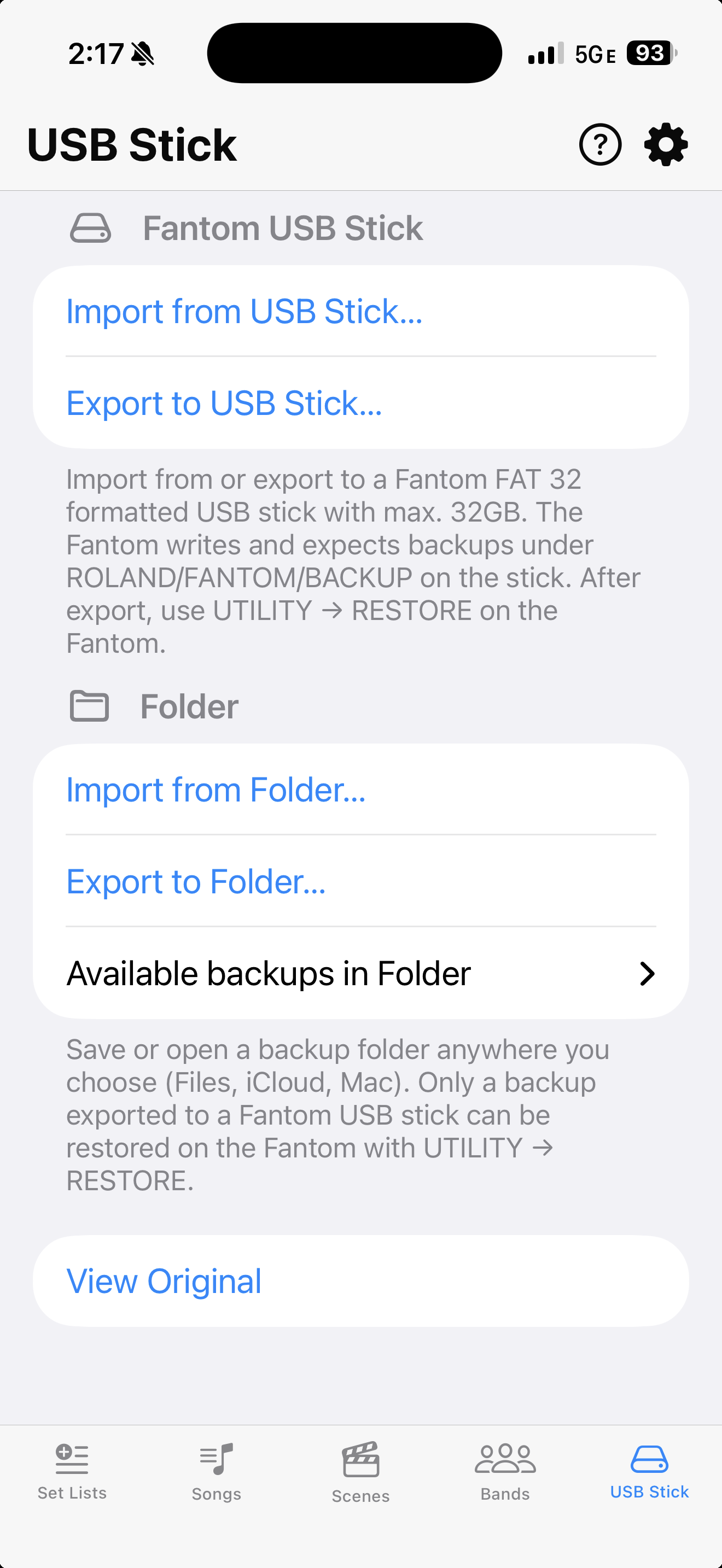
Import and export backups from and to a Fantom via USB stick. Quick and easy.
Fantom USB Stick
Importing from — and even more so exporting to — a USB stick requires the stick to be properly formatted on a Fantom. That ensures it is FAT 32 and has the right folder structure (/ROLAND/FANTOM/BACKUP) for import and export. See Backup on the Fantom for format and backup sample options.
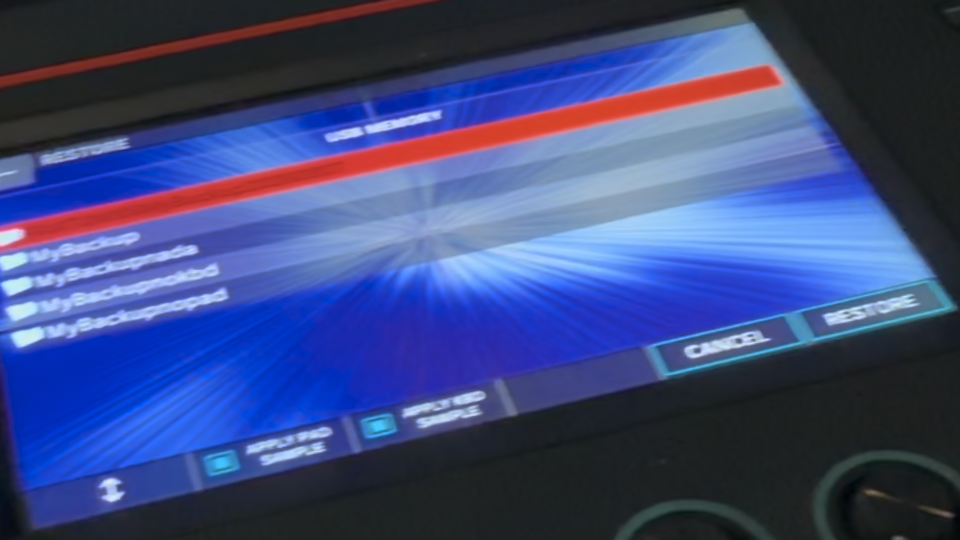
Once you have successfully exported a backup, use MENU → UTILITY → RESTORE on the Fantom to read it back into the keyboard. We recommend turning off APPLY PAD SAMPLE and APPLY KBD SAMPLE on the Restore screen for the fastest and safest transfer — set-list exports usually omit those samples anyway. See Export and Restore and the screenshot below.
Folder
and allow you to save the backup anywhere on your device and/or in the cloud. Please note that restoring a backup on the actual Fantom still requires a USB stick with the exported backup folder under the /ROLAND/FANTOM/BACKUP directory.
shows set lists exactly as imported—read-only. returns to your edits.