Find a set list, filter by band, select several at once, and drag & drop to change slots.
Find a set list, filter by band, select several at once, and drag & drop to change slots — the filter row on Set Lists is built for gig prep when you manage many lists at once.
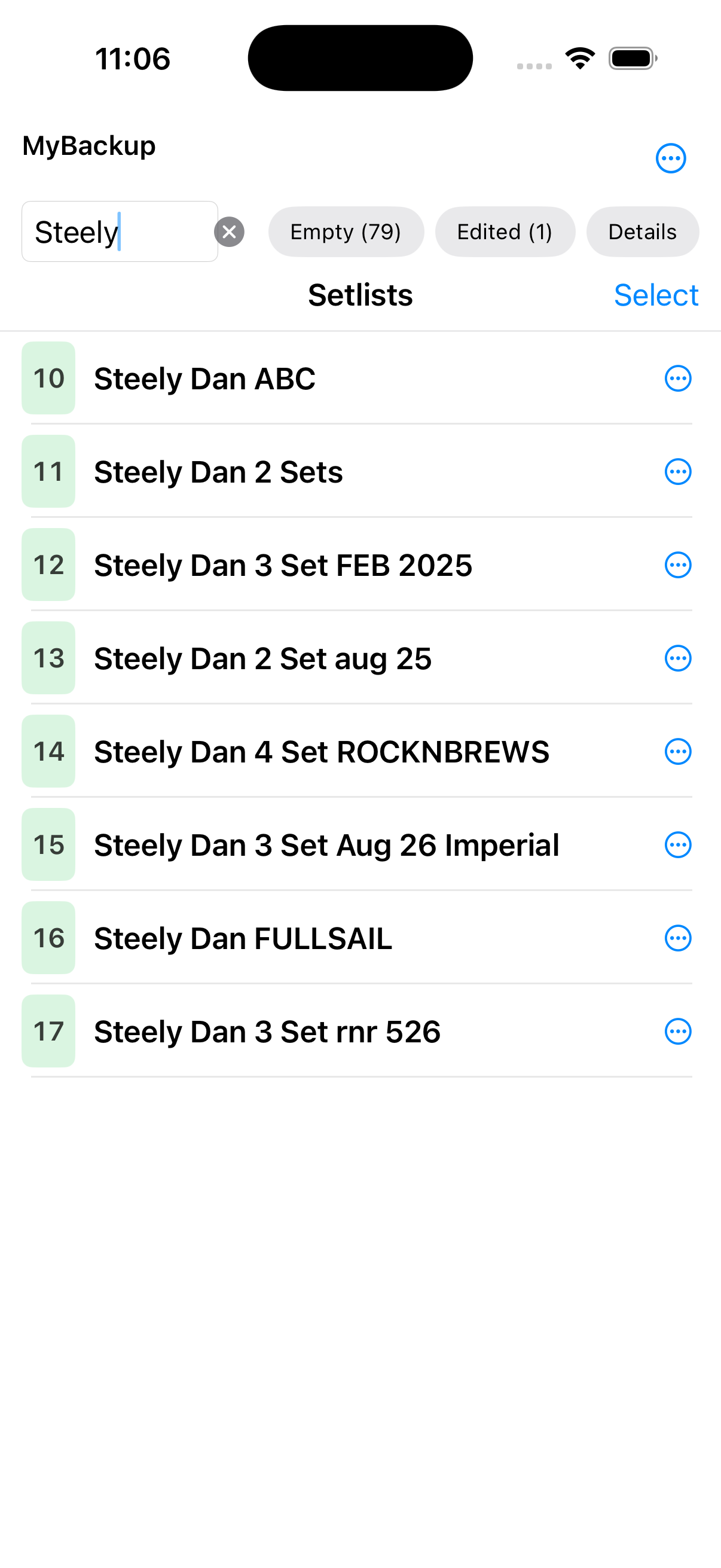
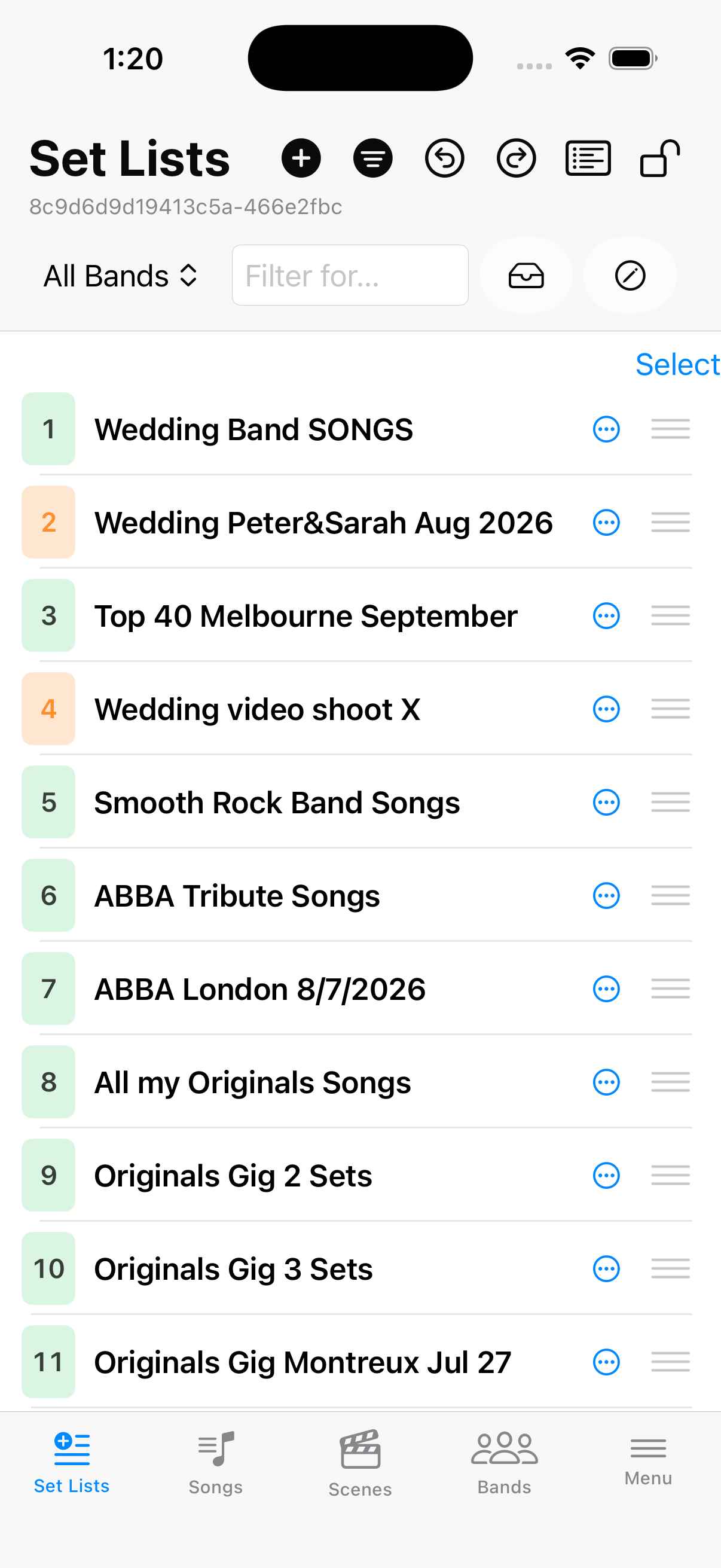
FilterBlends in a text box you can type any text you want to filter for in the set list names.
Filter for…Type in any text to filter for in set list names.
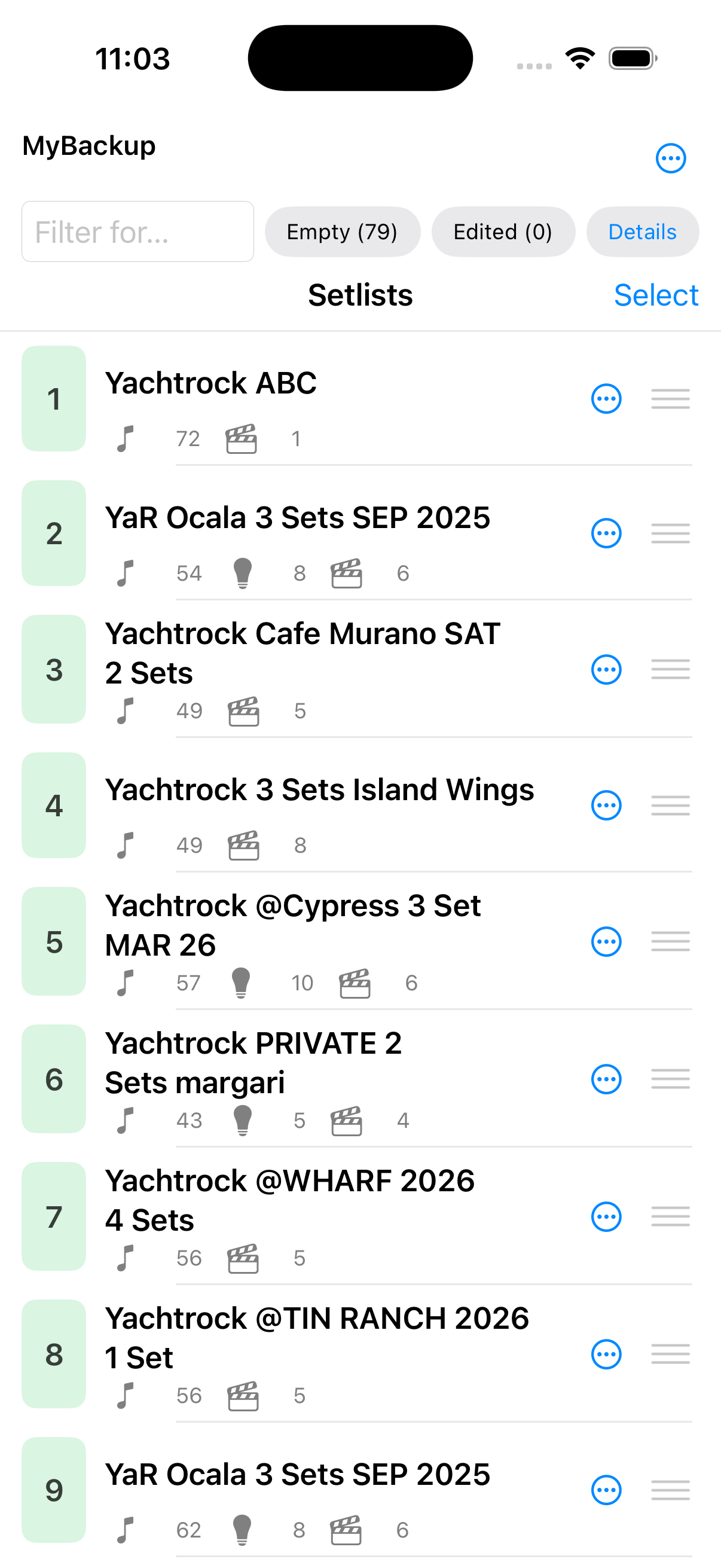
EmptyShow also the empty set list slots, where you might want to create a new set list in or you might want to consider them when re-arranging your set lists.
EditedShows only Set Lists you have changed. Those should also be indicated by a colored line.
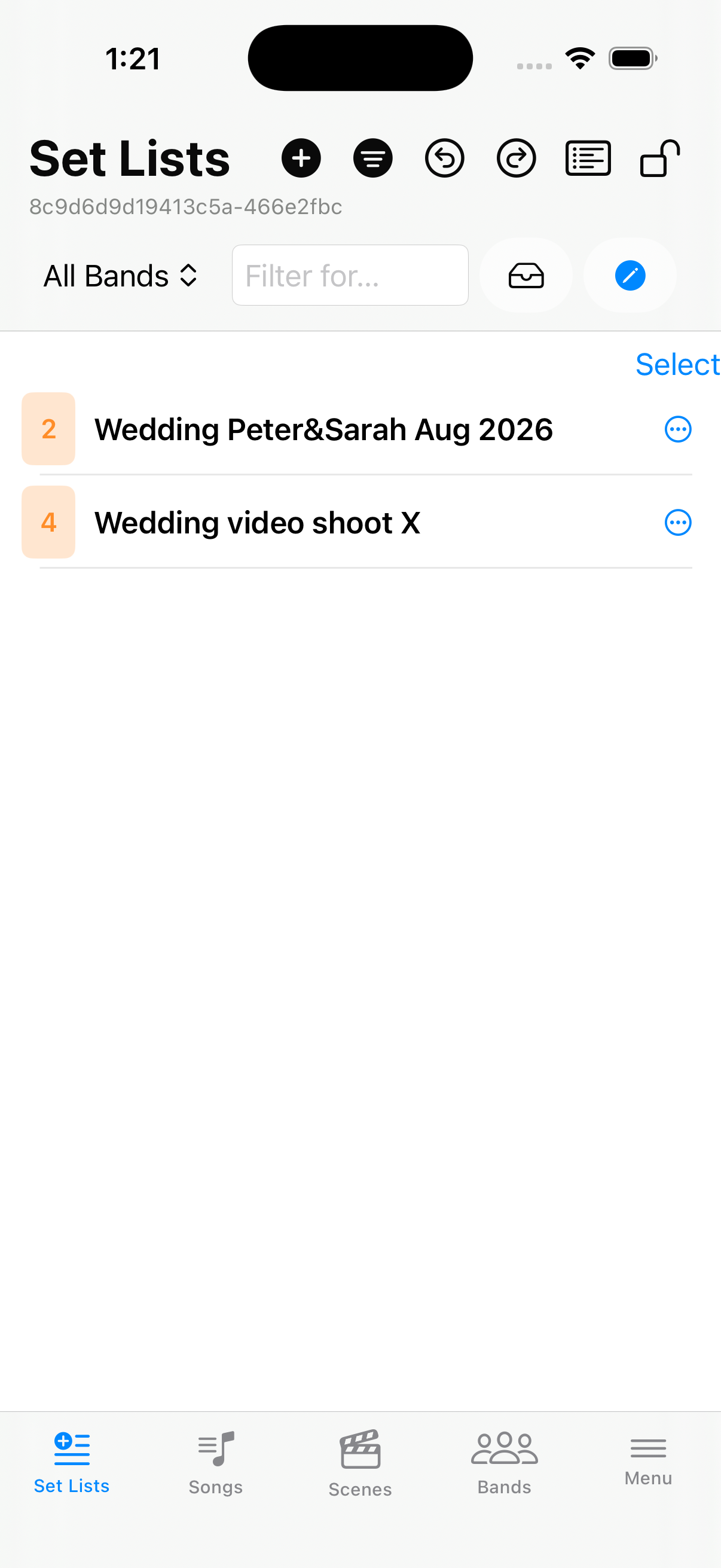
BandsA dropdown — filter for one of your bands and review or edit the set lists just for that project.
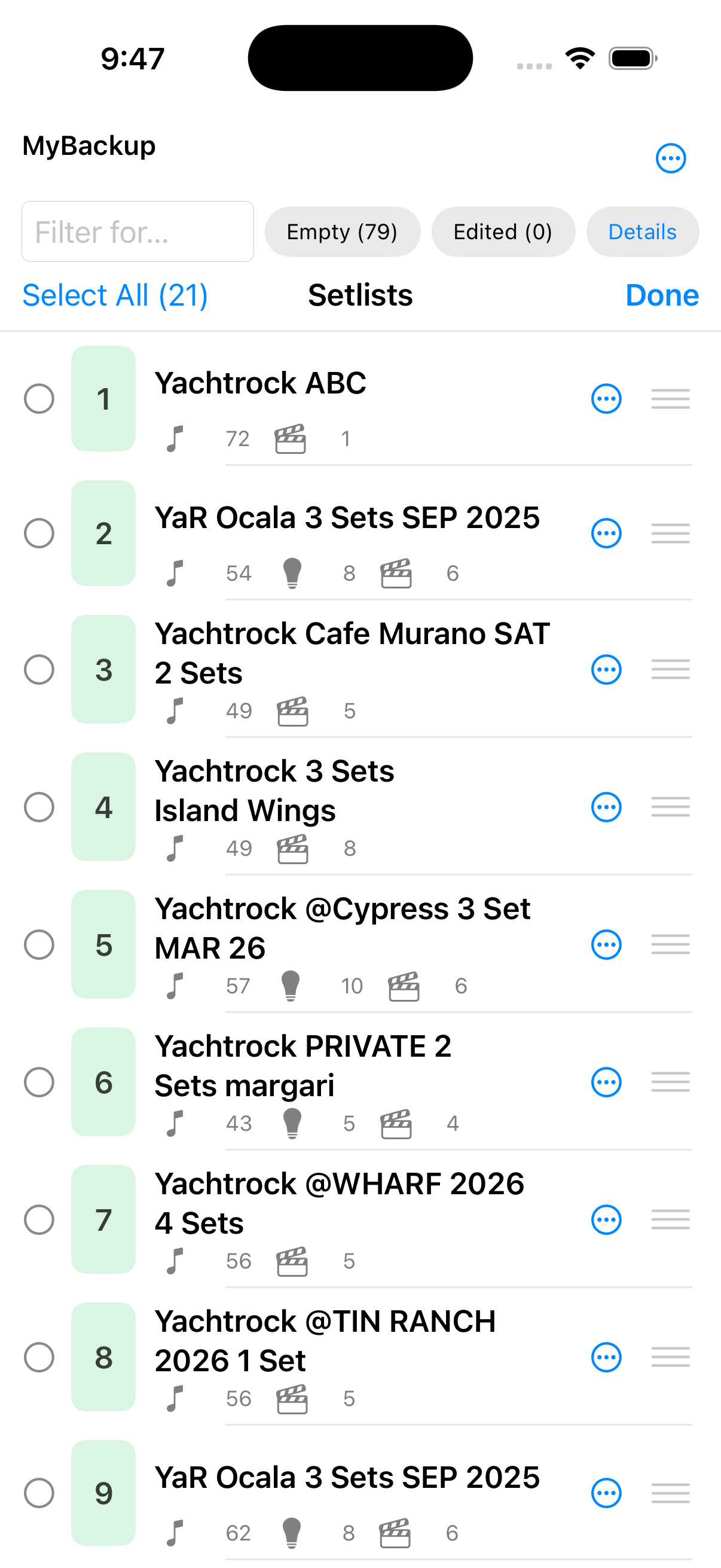
SelectSelect one or multiple set lists
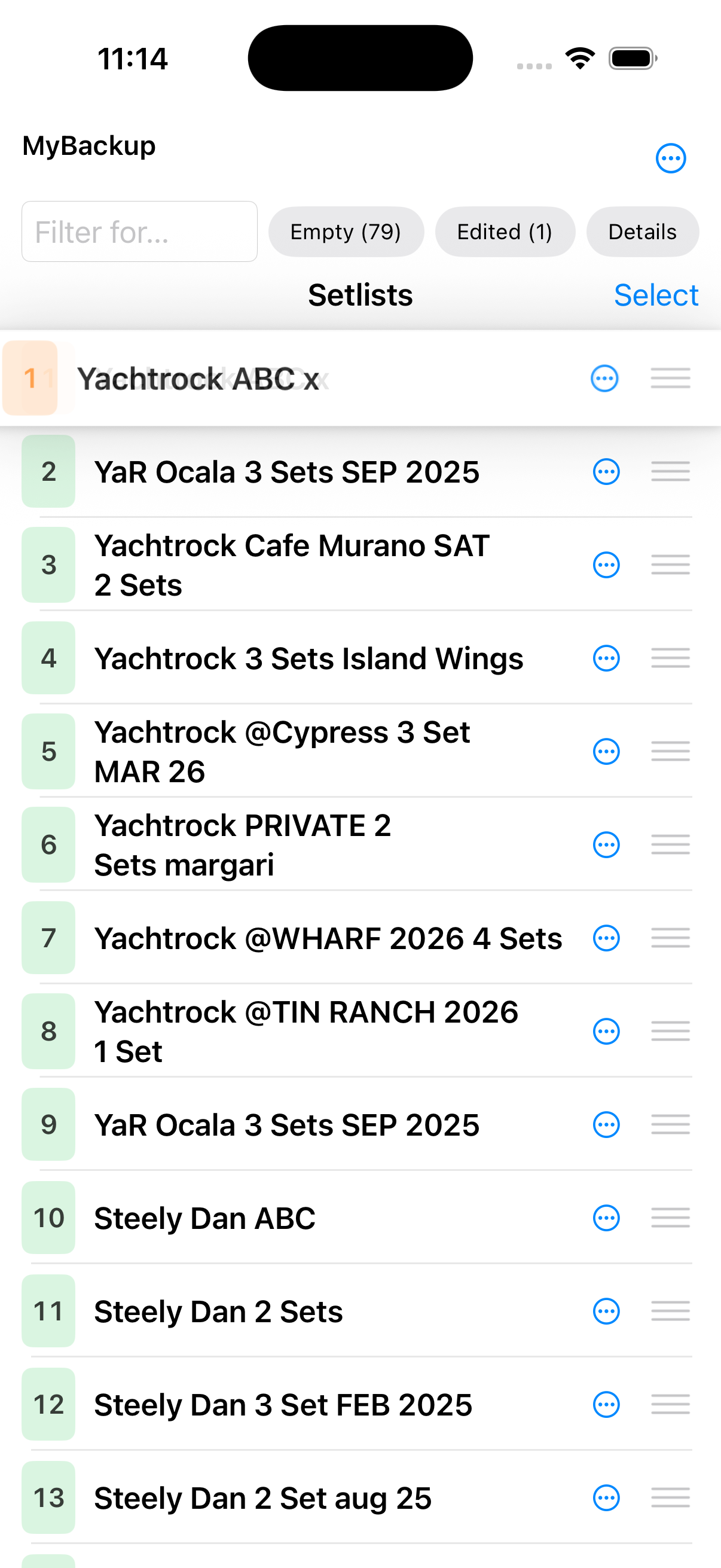
Drag and DropUse the drag & drop handle for any of the set list lines to move the setlist around and change its position in the set lists. You can also select multiple and drag them around as a block.
LockLocking the screen means deactivating the drag & drop functionality so you can safely scroll, in particular on smaller devices.
Use Filter for… for name or slot. Combine Empty and Edited when you want those slices.
Bands
Once you define bands on the Bands tab, Set Lists can show All or one named project. Each band uses a Name contains rule against set list titles.
Open the filter strip on Set Lists and pick All Bands or a band name such as Wedding / Top 40 Band or ABBA Tribute.
Select and Reorder
Tap Select to check several set lists. Select All / Deselect All apply to what is visible. While anything is checked, More and drag handles appear only on the selection.
Unlock Lock to drag with the drag handle. Drag is off while Filter for…, Empty, or Edited is active. A band filter alone does not block reorder.



 Filter for… for name or slot. Combine
  Empty and
  Edited when you want those slices.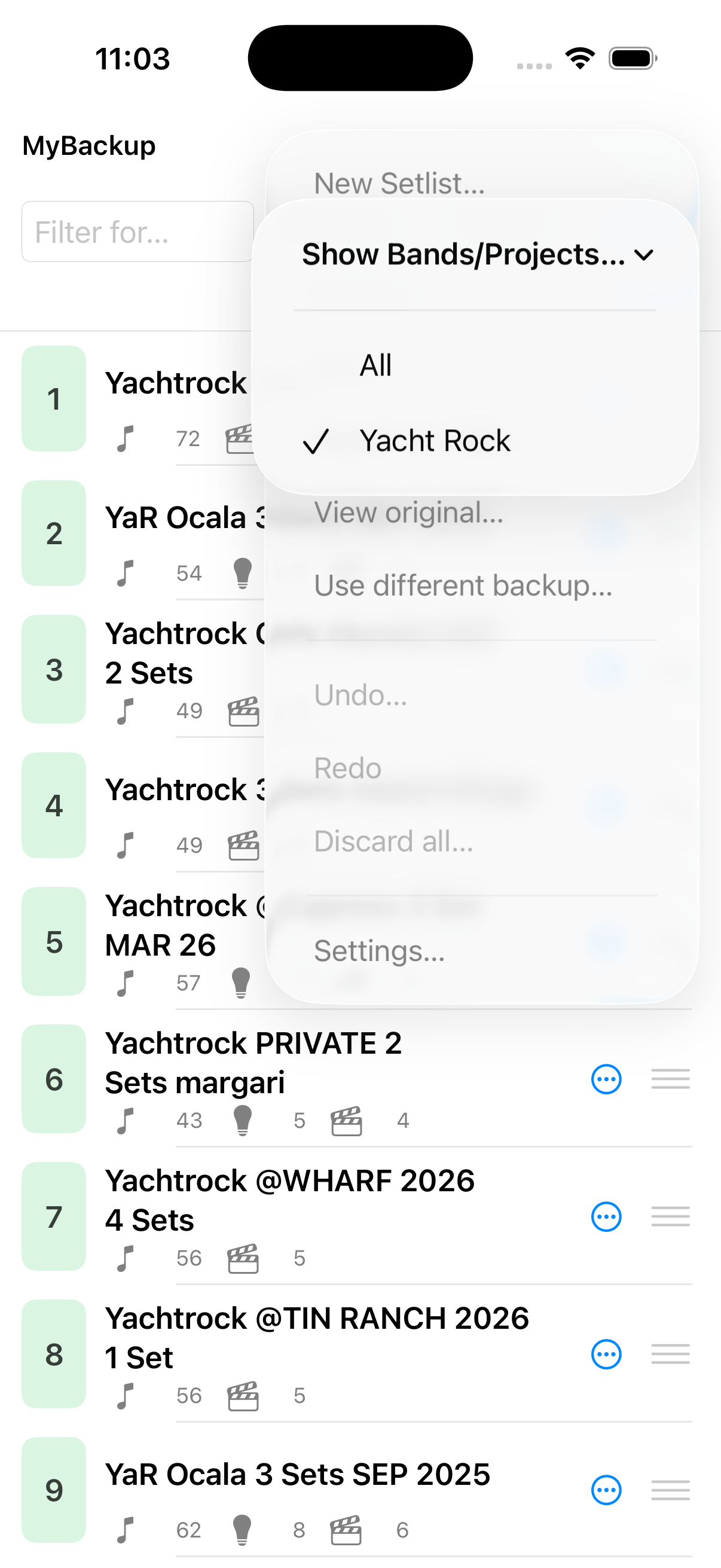
 Select to check several set lists. Select All / Deselect All apply to what is visible. While anything is checked,
  More and drag handles appear only on the selection.
 Lock to drag with the drag handle. Drag is off while Filter for…, Empty, or Edited is active. A band filter alone does not block reorder.