Overview / Edit a Set List / Edit a Set List Context Menu
Edit a Set List Context Menu
Fantom Set List Buddy offers a comprehensive context menu in the set list editor. All the functions you know plus some you have only dreamt of so far.
Scenes and Songs picker
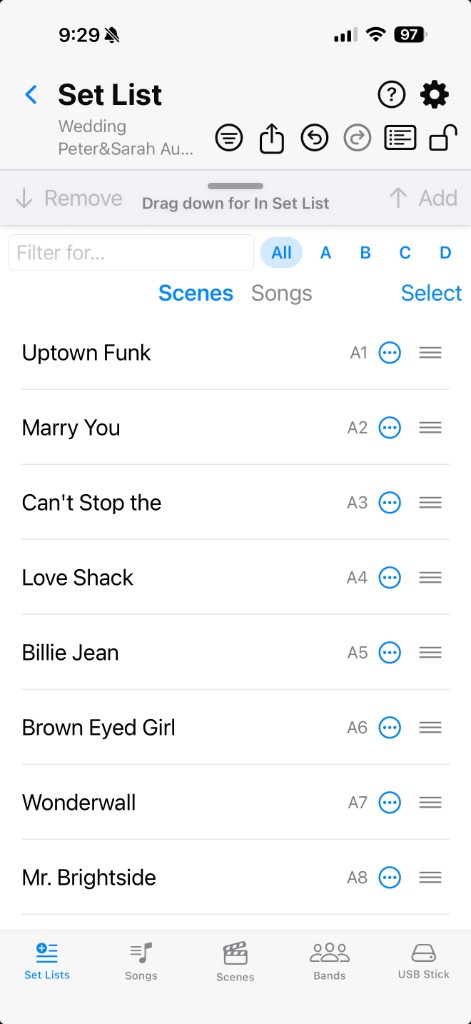
Under the transfer handle, switch between Scenes (full table, banks A–D) and Songs (titles from the Songs tab). Tap  More on a scene — or press and hold it — for the context menu.
Choose Scenes or Songs to add to the set list
Select one or more Songs/Scenes to add to the set list. Filter for Fantom banks A, B, C, or D (some of you might find your preferred performance scenes in one of those), or filter by patch ID (A123 as an example) or by scene or song name. Reminder: a song can consist of multiple scenes.
Scene context menu
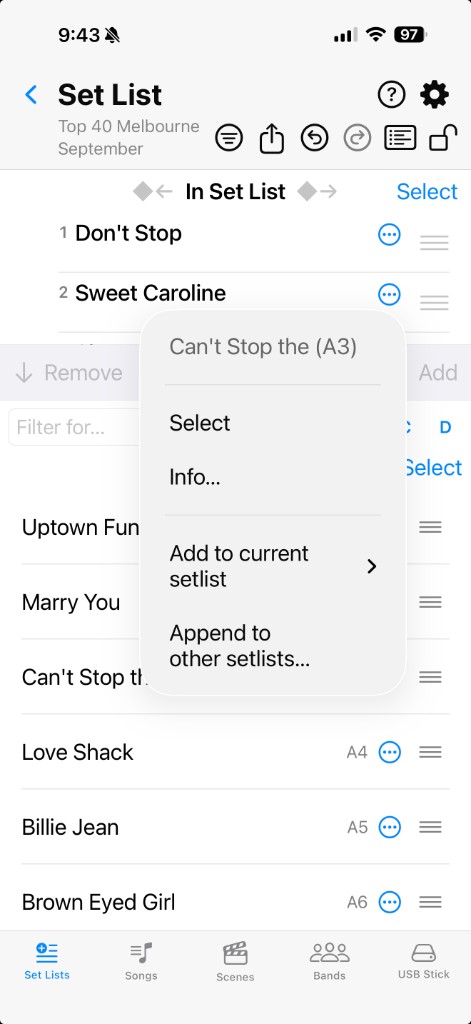
The context menu here offers you detailed on the selected scene, adding the scene or song to the set list you are working on right now via , or simply — i.e. add it to multiple set lists at once. You might have a use for that somehow, somewhen, somewhere.
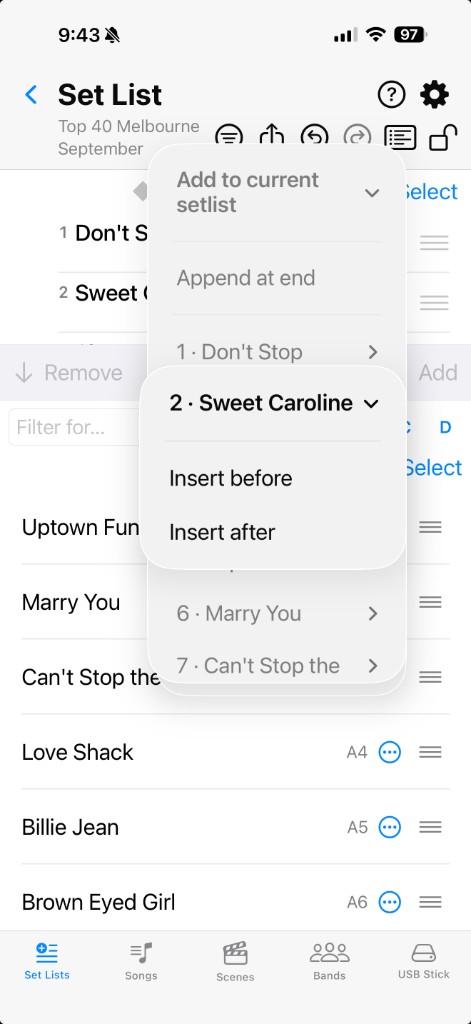
Add to current setlist
offers / for your selection and an existing scene in the set list. That is the easiest way, we find, to work when creating changes to the set list — in particular when you are still not sure where this one will go… Let this function inspire you. Does it go before or after… or before…?
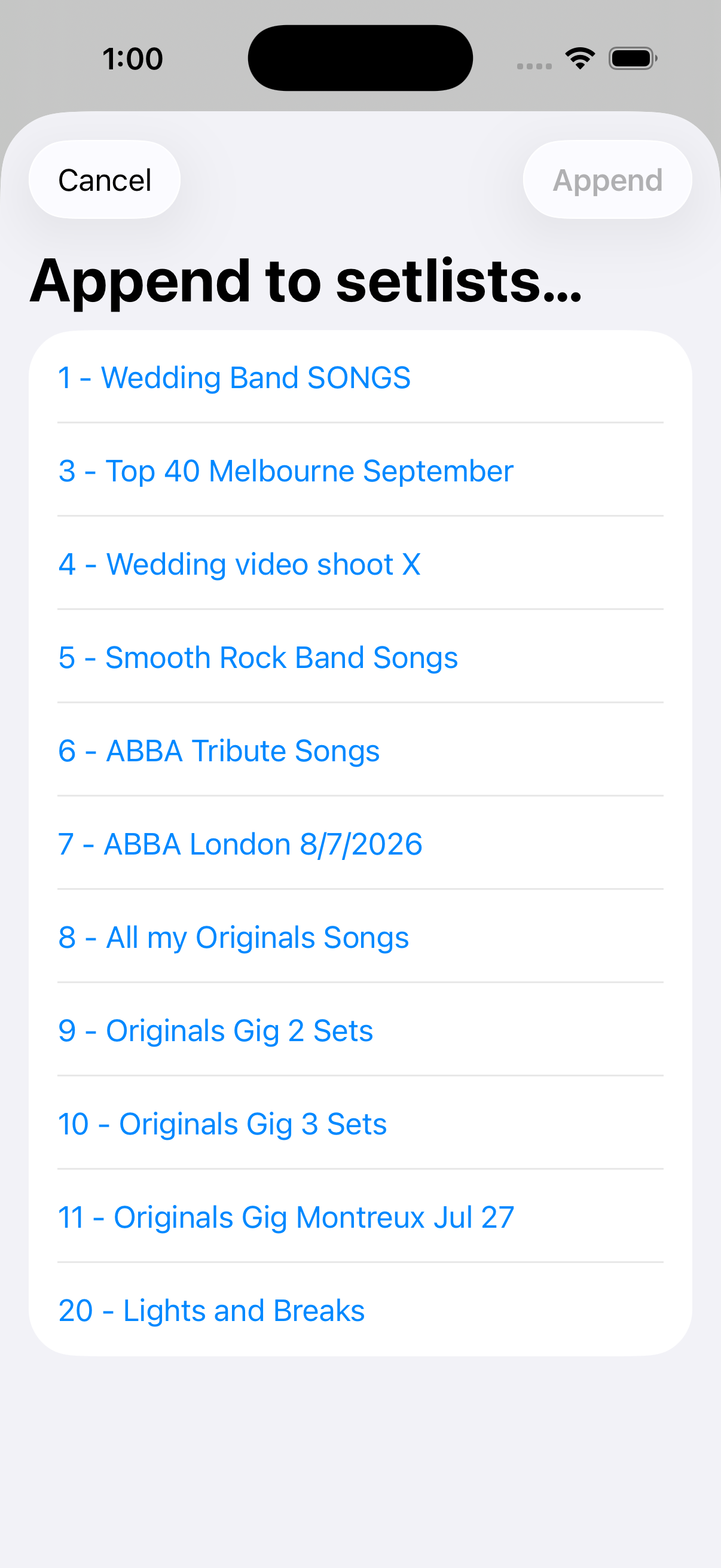
Append to other setlists…
adds the scene to one or more other set lists.
Context menu — scenes in the set list
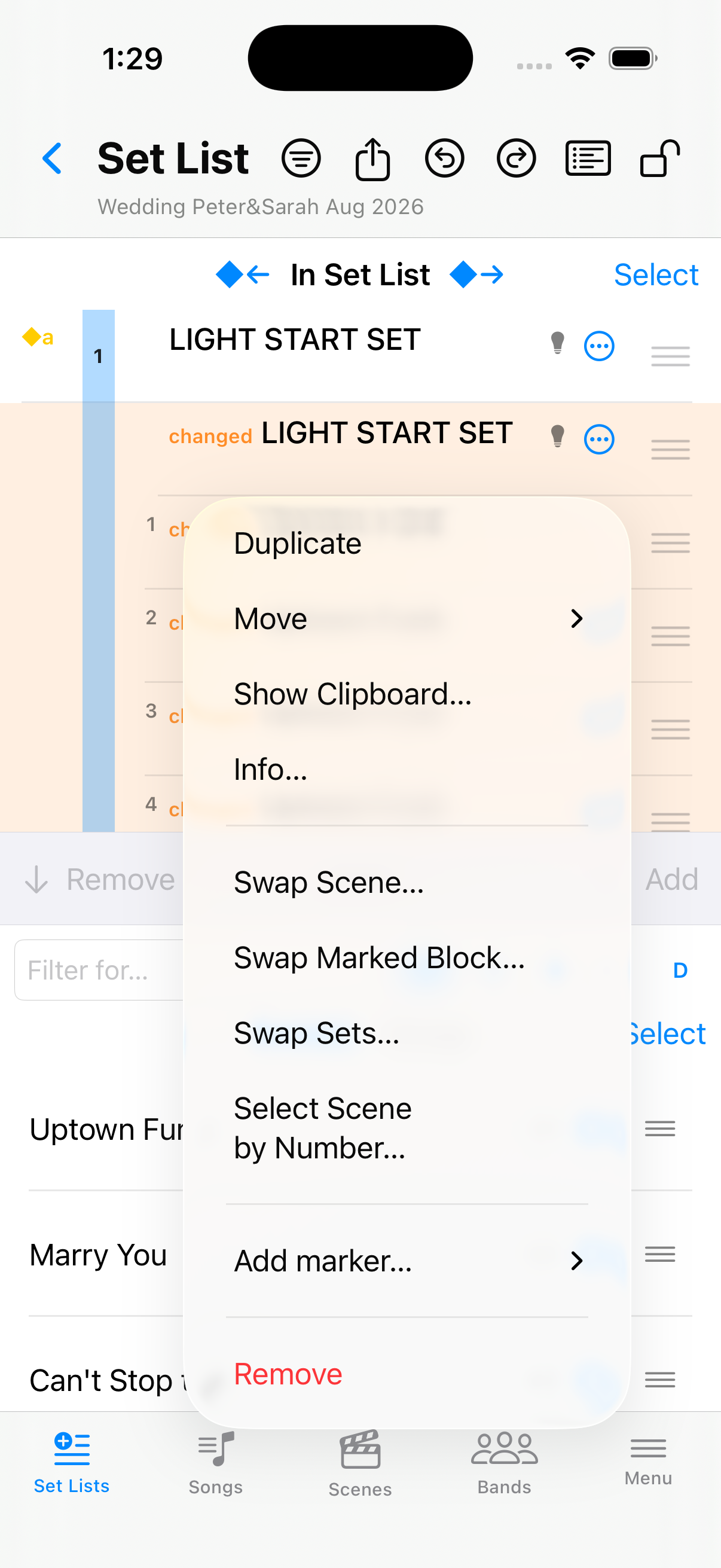
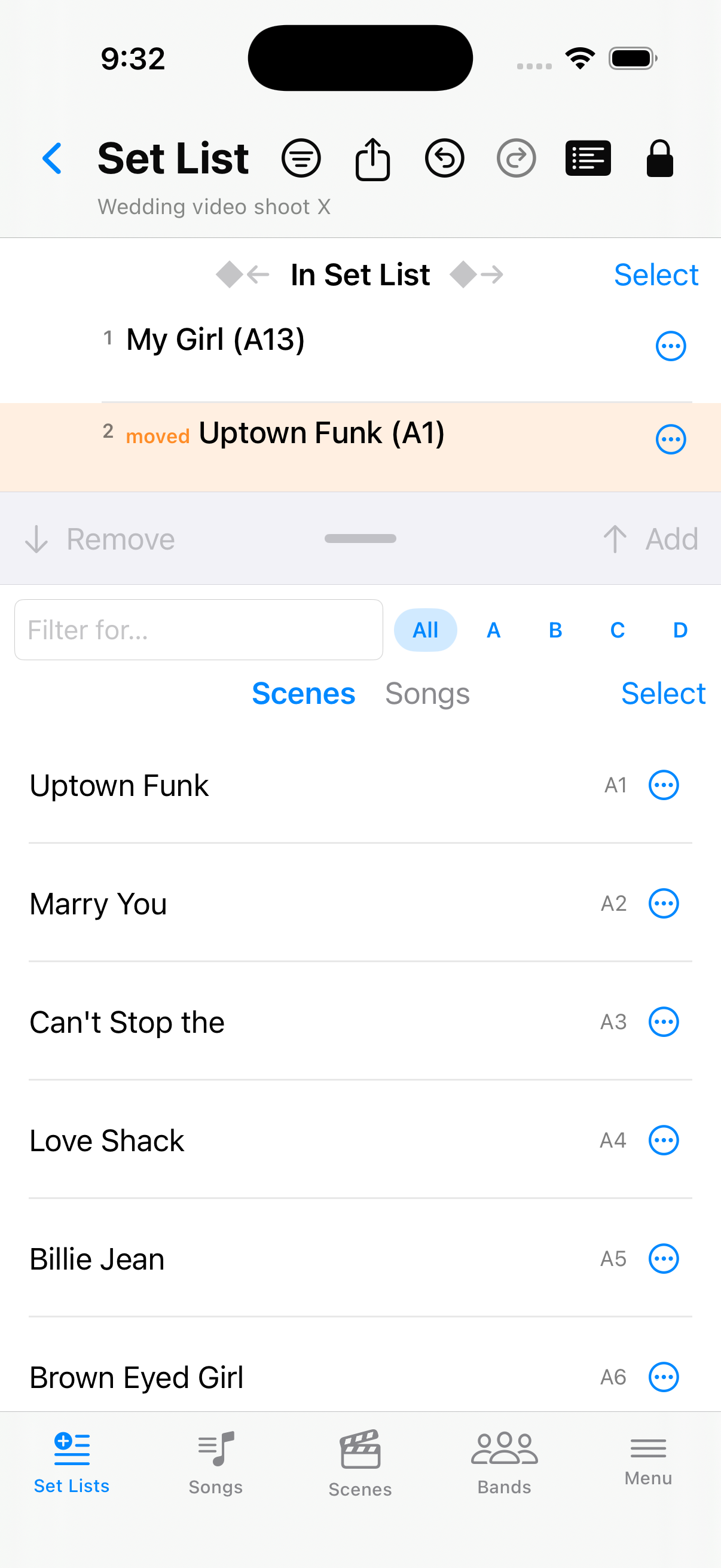
For a scene or song already in the open set list, tap More on the row — or press and hold it — to open the context menu. The grey header shows which row you tapped. Scroll for Show Clipboard…, Info…, swaps, markers, and Remove.
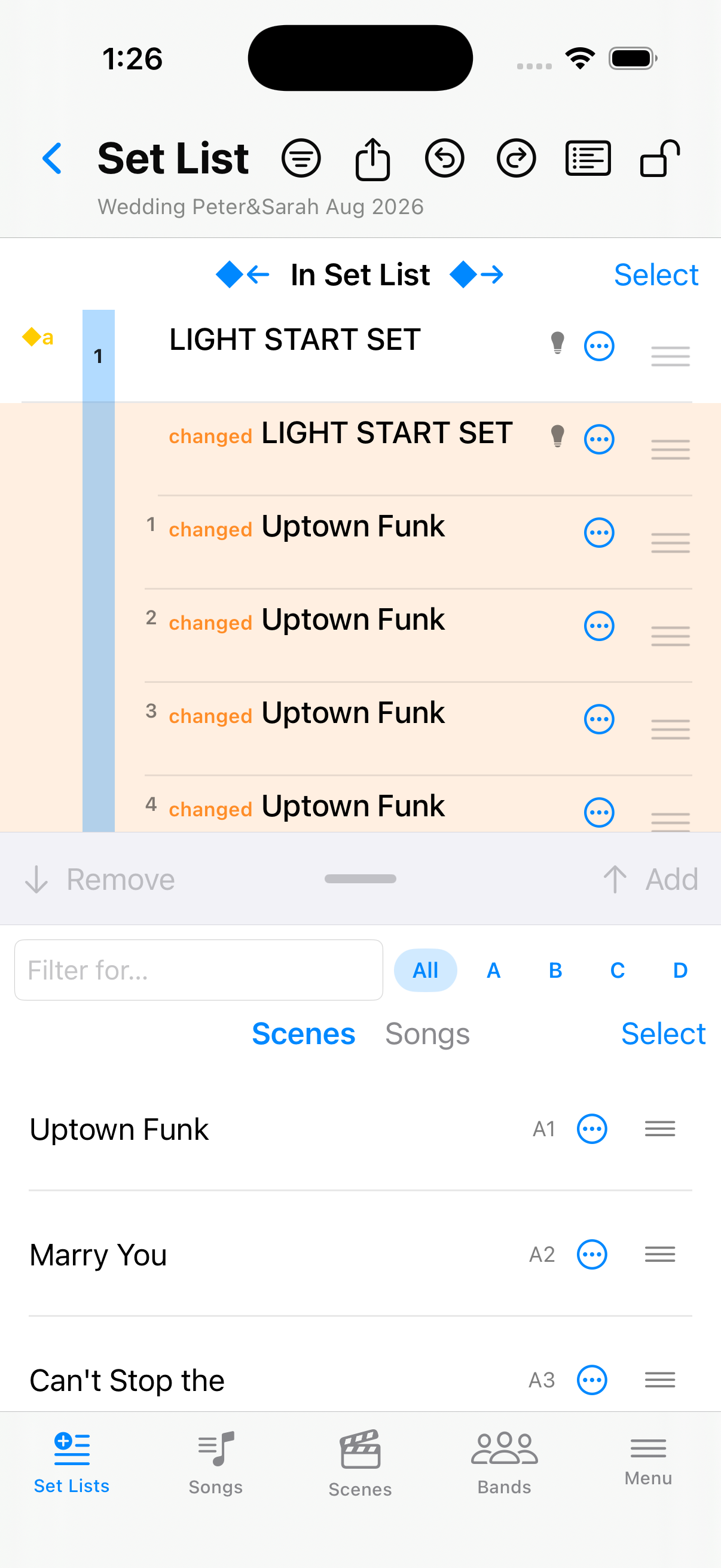
Before — scenes in the set list
The open set list before you change a row.
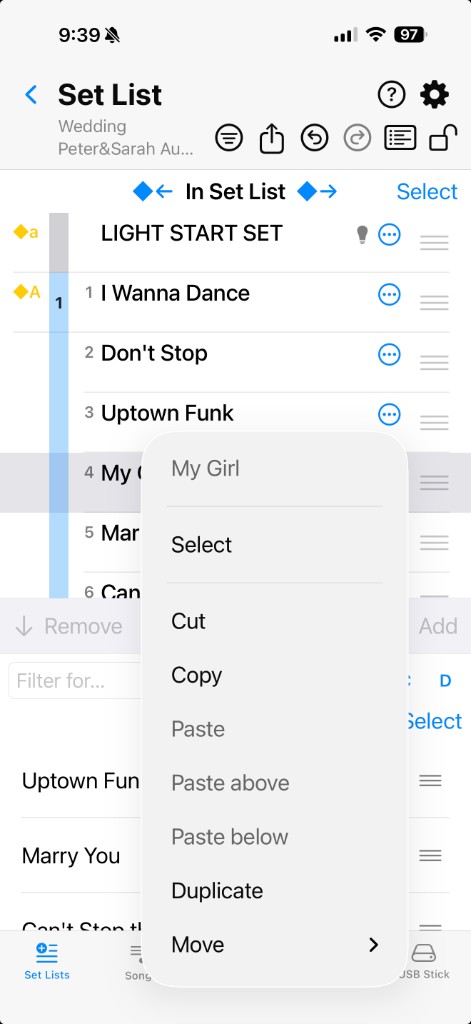
Open the context menu
Start with , Cut / Copy / Paste, Duplicate, and . Paste stays grey until something is on the clipboard.
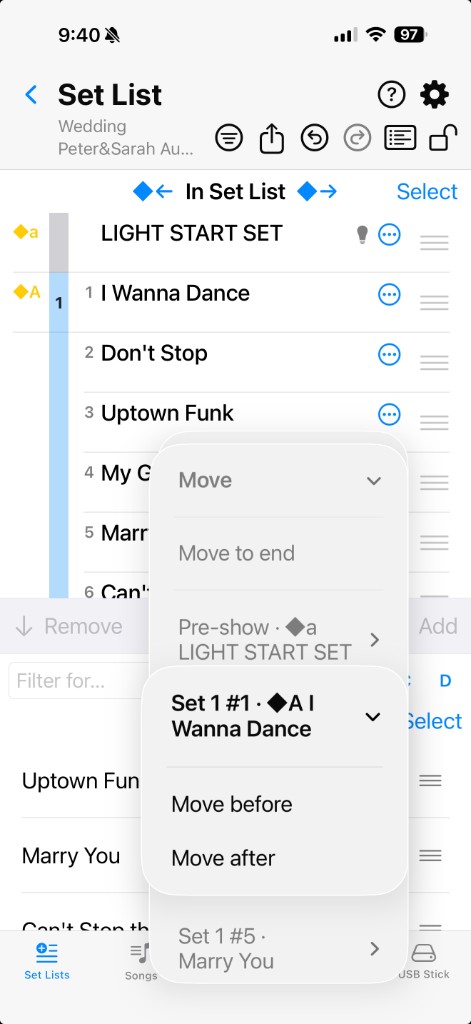
Move… — pick a destination
lists every place in the set list — , or / another song. Set labels and ◆ markers help you land in the right spot without scrolling the whole list.
More actions — scroll the menu
Scroll for Show Clipboard…, Info…, swaps, markers, and Remove.
Info… and clipboard
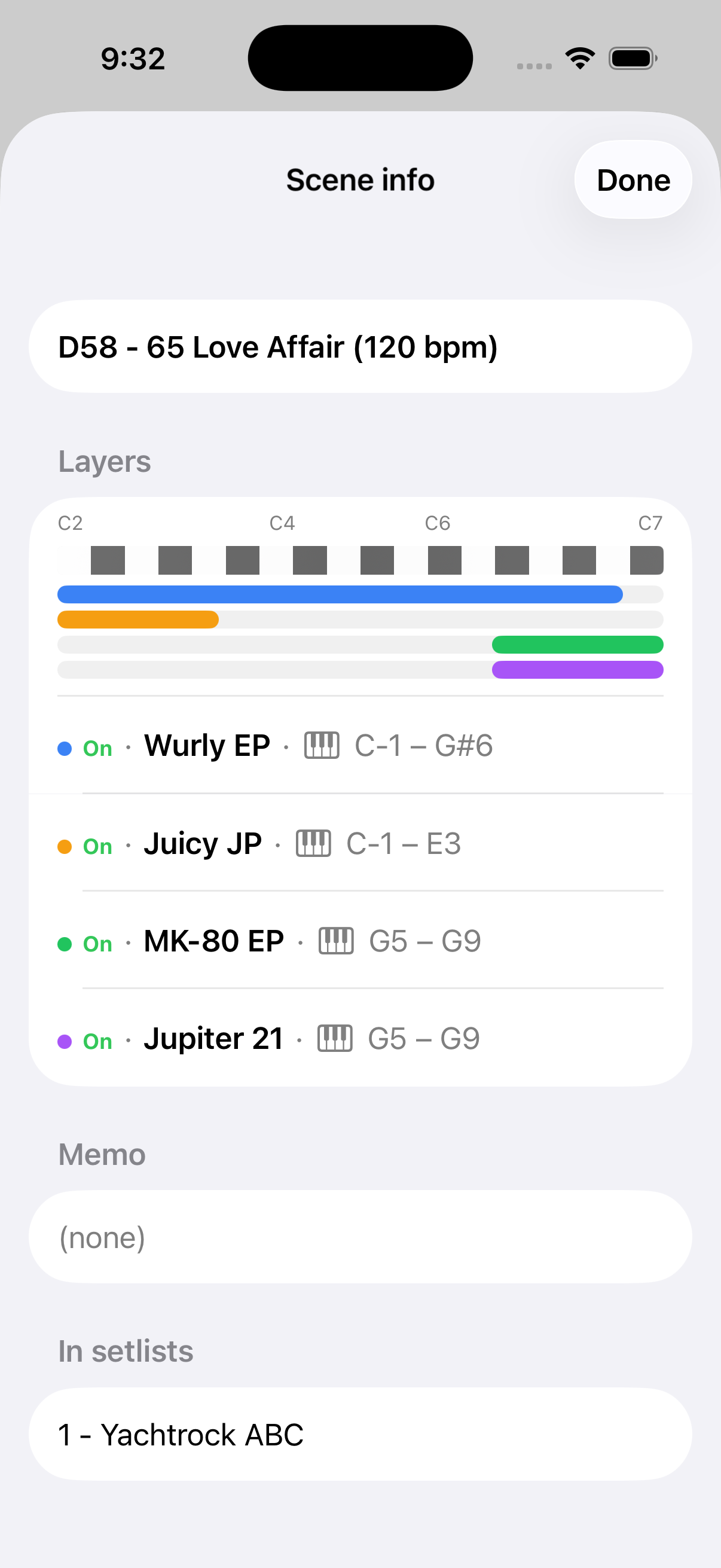
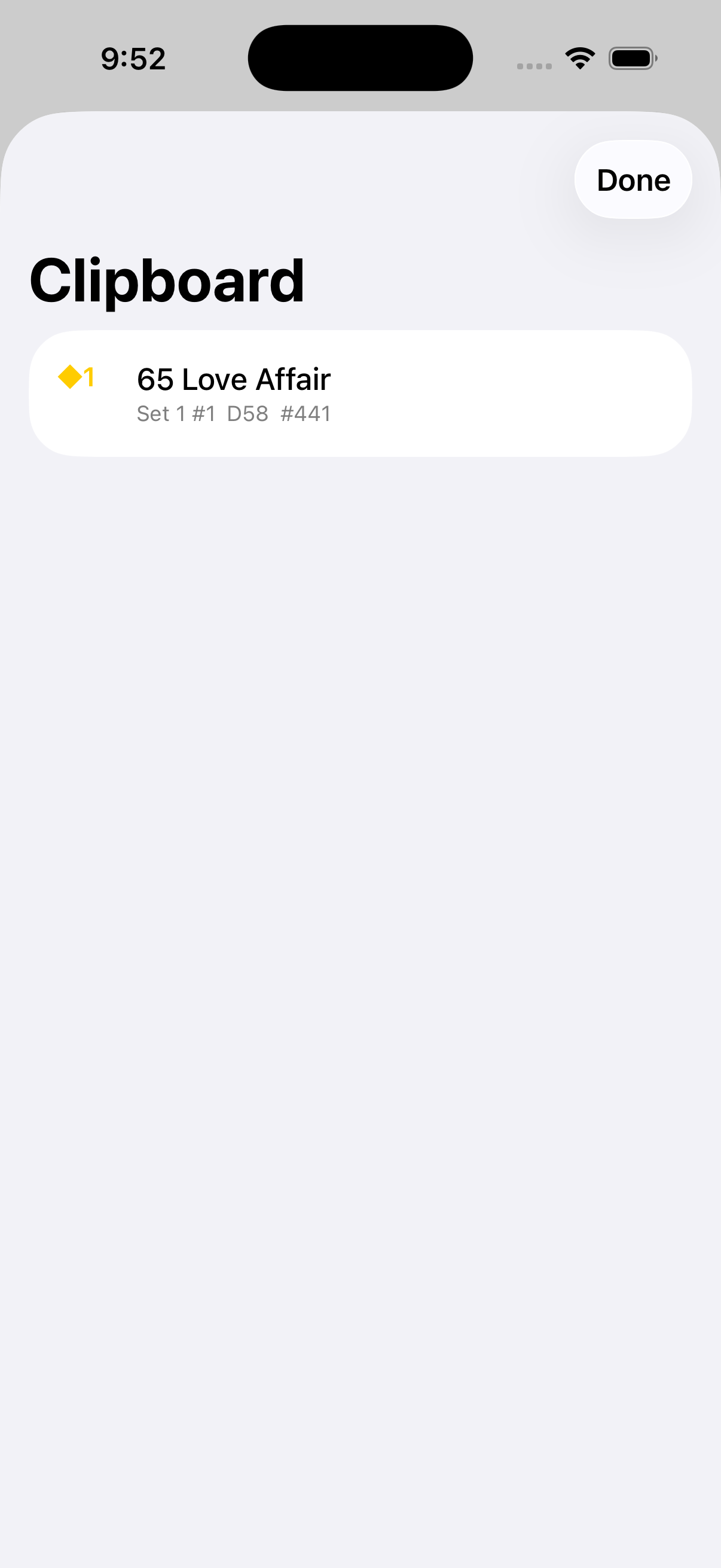
From the context menu, shows tones and set lists. lists what you cut or copied.
Swap Scene… — dialog and after
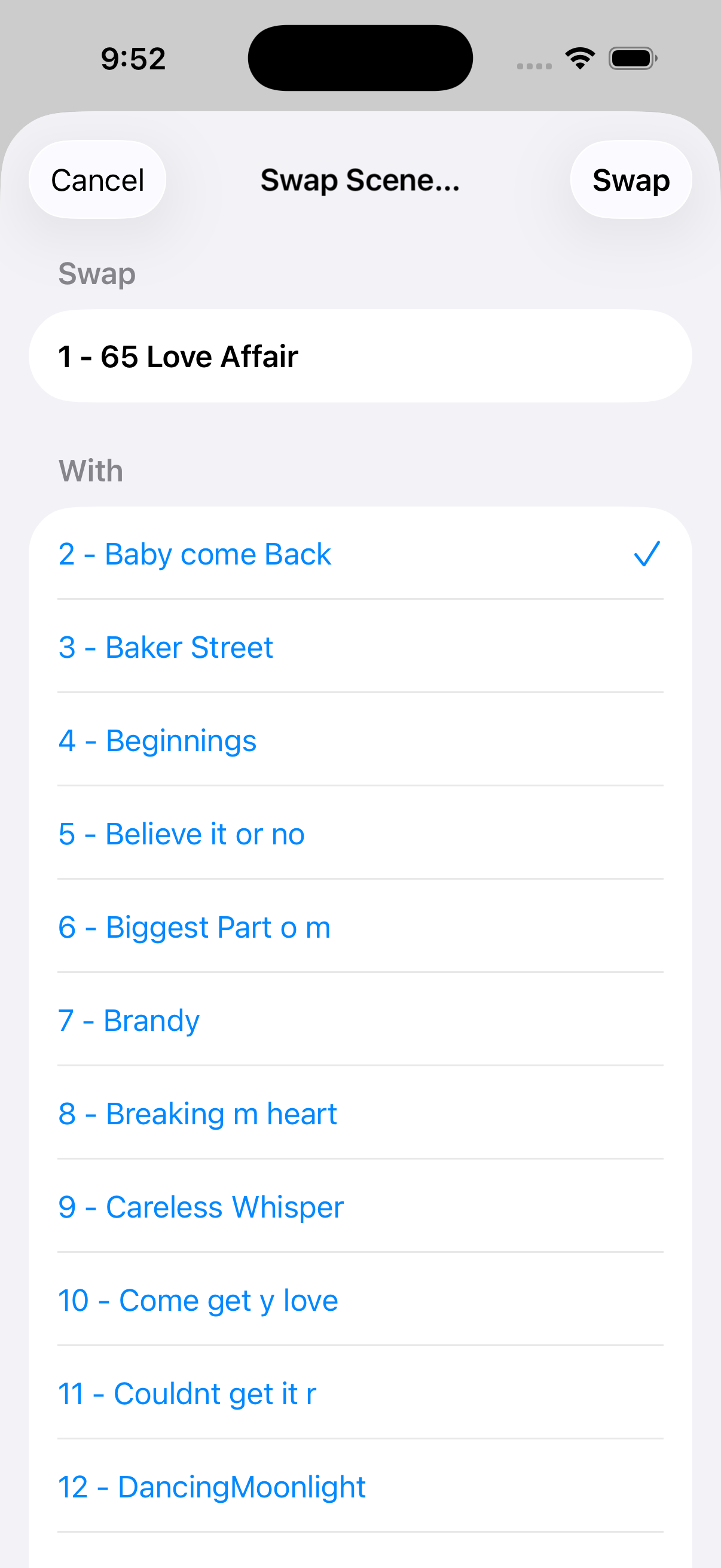
From the context menu (scroll if needed), exchanges two songs in the same set list.
Other swaps and select by number
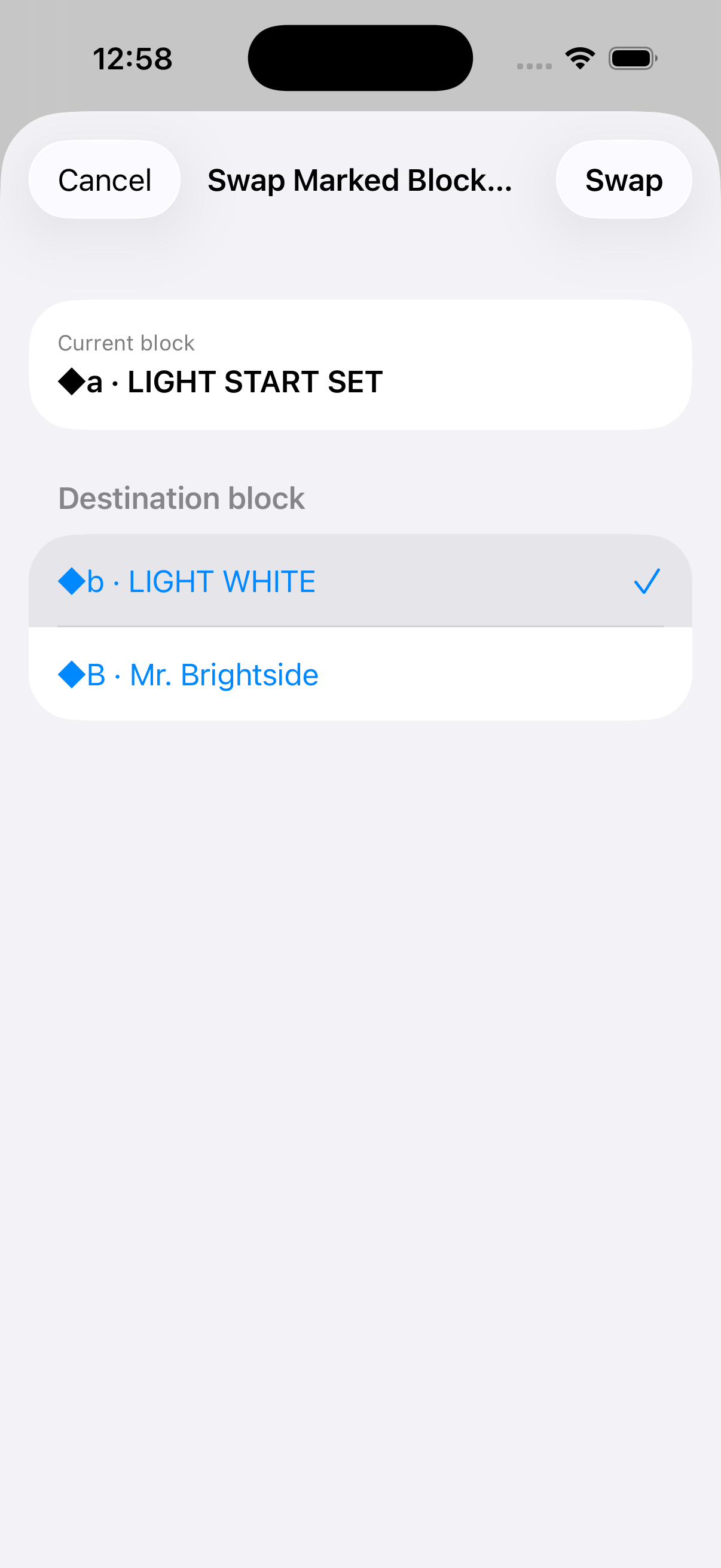
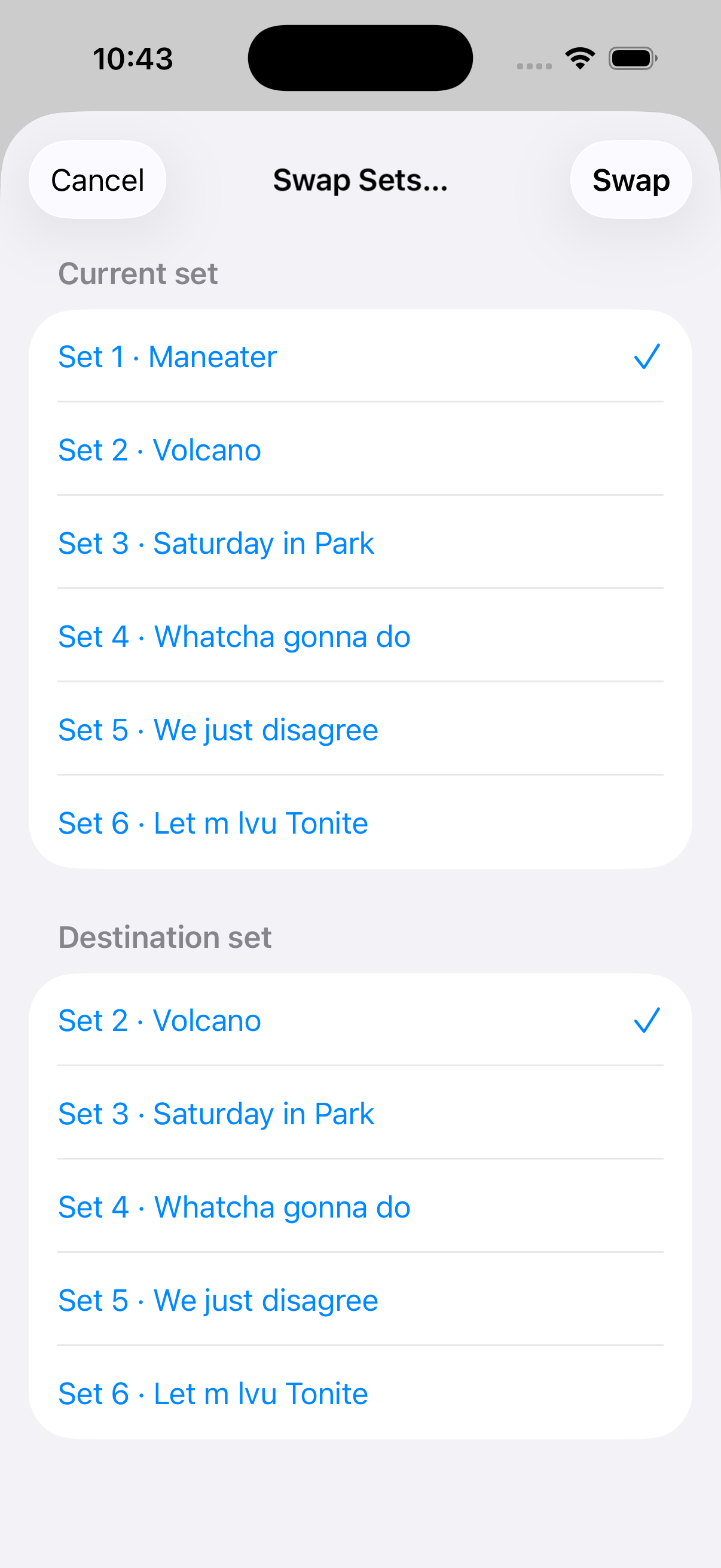
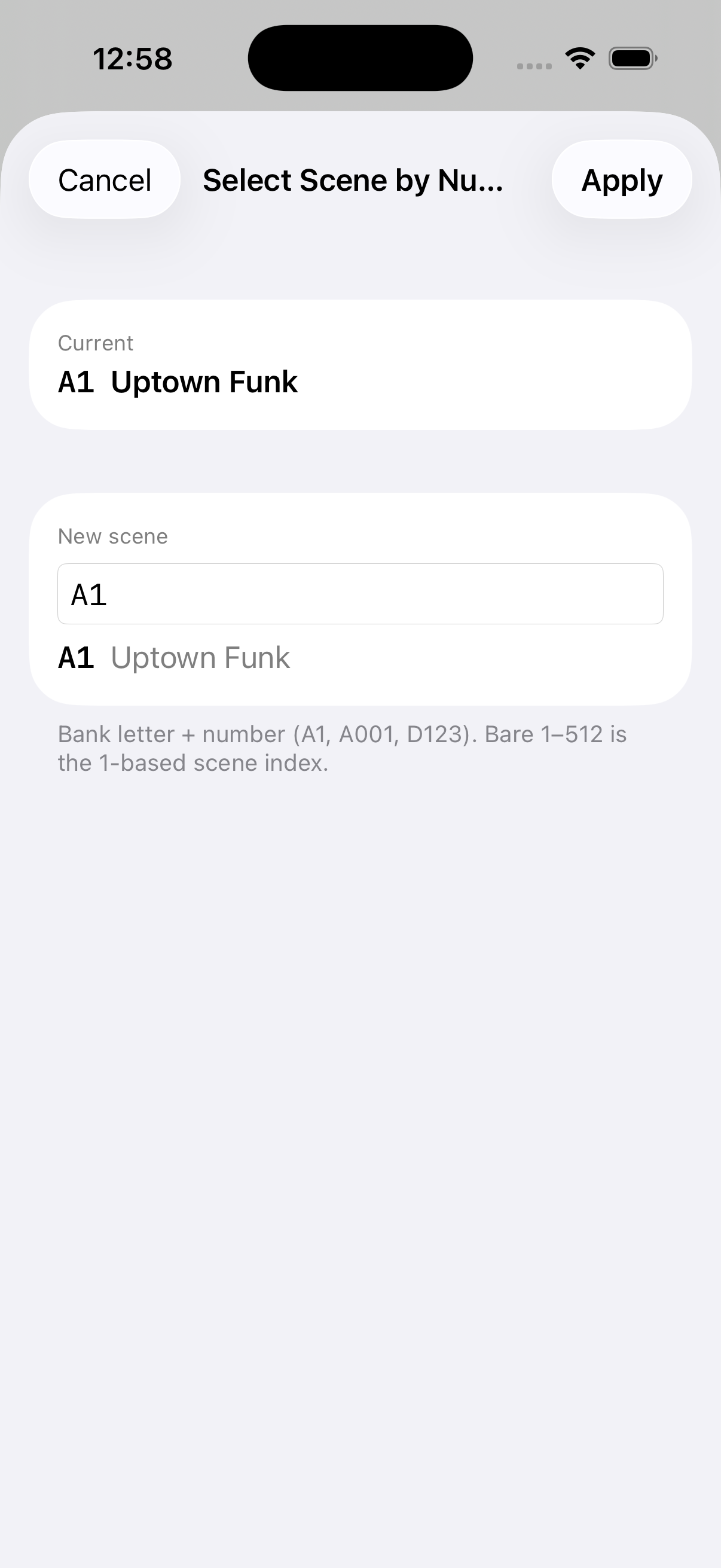
From the context menu: , (needs ≥2 detected sets), and .
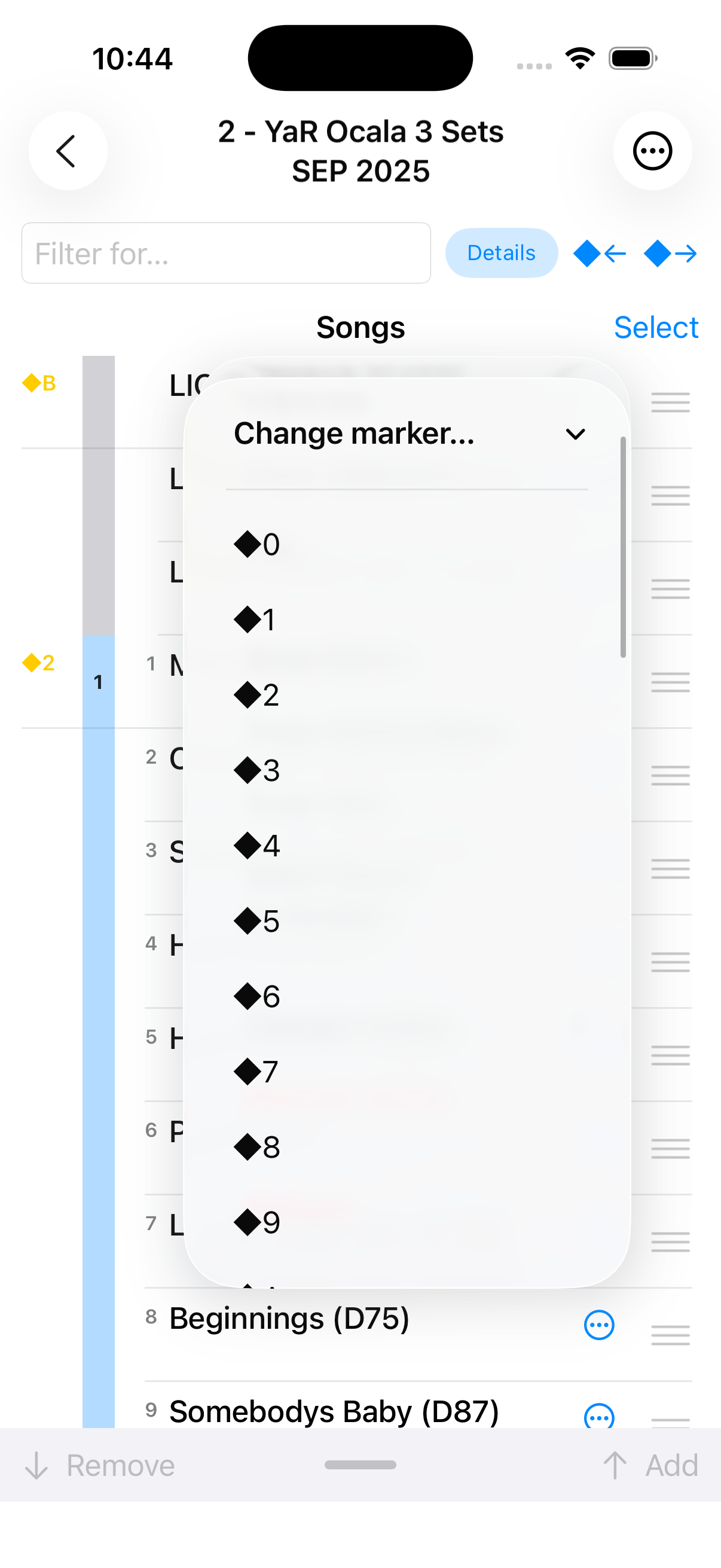
Markers
From the context menu, add, change, or remove ◆ markers.