Overview / Edit a Set List / Re-Ordering and Drag & Drop
Re-Ordering and Drag & Drop
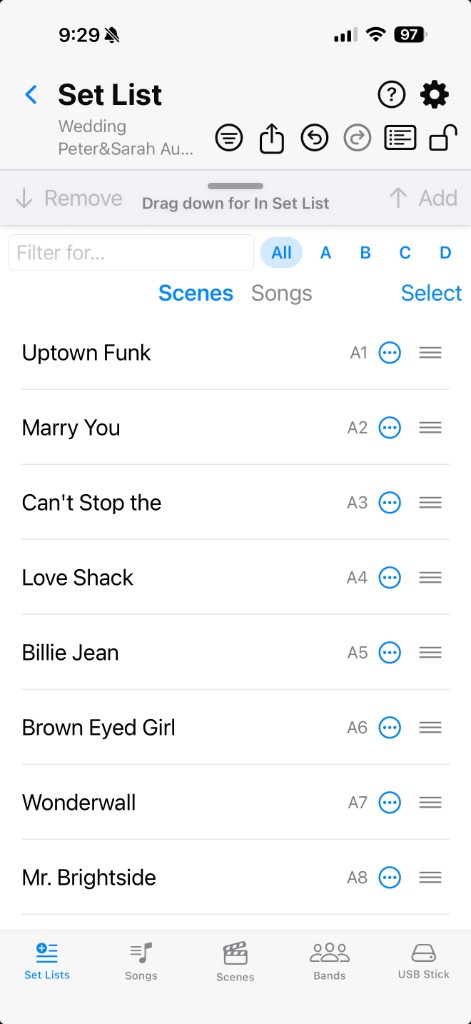
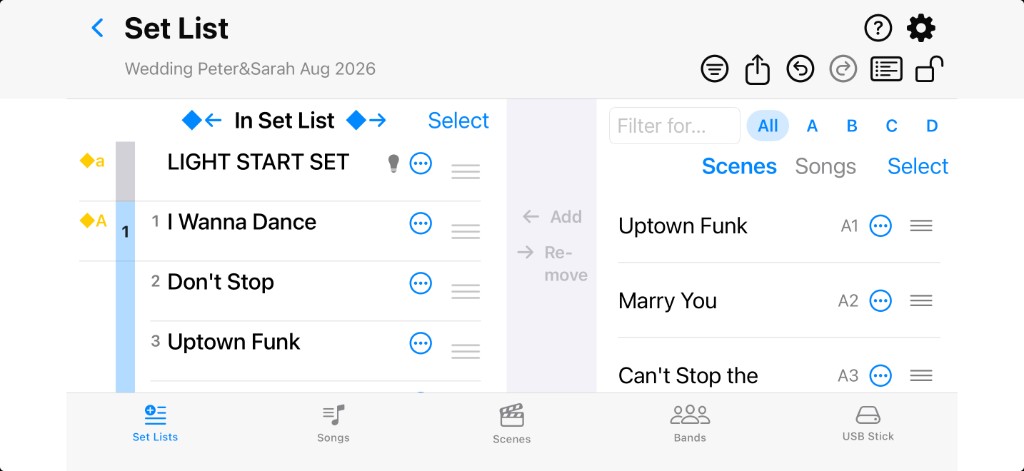
How to use Fantom Set List Buddy's split screen for Set List edits and Scenes/Songs selection.
The Set List (Edit) screen allows you to change the order of scenes in the selected set list. The context menu is extremely powerful and offers you so much more comfort than what you would find on the Fantom hardware.
The screen is split into two parts. The upper one — in Portrait mode, otherwise the left side — shows the current order of scenes in the set list. The lower part (or the right side in Landscape) shows available Scenes from your Fantom, or Songs (a Fantom Set List Buddy concept for smooth set list import from text and for songs that span multiple scenes when you need them). You set the split by dragging the  Handle up or down, or double-click the handle to maximize or minimize the upper and lower part, or to split the screen half-and-half — just like we always amicably split our tips, right?
When you want to rearrange, tap  Lock to unlock the Drag & Drop functionality — then grab a song by its drag handle and move it where the set needs it. Select a few songs at once and drag them around together as one block. Much nicer than nudging scenes one by one on the Fantom.

Select one or more scenes and use the  Remove function in the divider to remove the scene(s) from the set list. Use the
  Add function right next to it on the divider to insert a scene or song — or a multiple selection thereof — into the set list. Drag the Handle up or down to give the set list or the Scenes / Songs list more room. In Landscape mode on your device, the lists sit side by side. Double-tap the handle to hide one pane, bring both back, or settle on a comfortable half-and-half split.