Overview / Set Lists / Set Lists Context Menu
Set Lists Context Menu
Create, rename, copy, swap, clear, delete, and share from one context menu.
Every occupied set list row on the Set Lists screen has a context menu — the fast path for the chores you do before a gig: rename a list, copy it to another slot, swap two slots, clear scenes, delete a list, or share tonight’s order.
To open it, tap  More at the end of the row (the ⋯ button), or press and hold the set list name. Both gestures open the same menu.
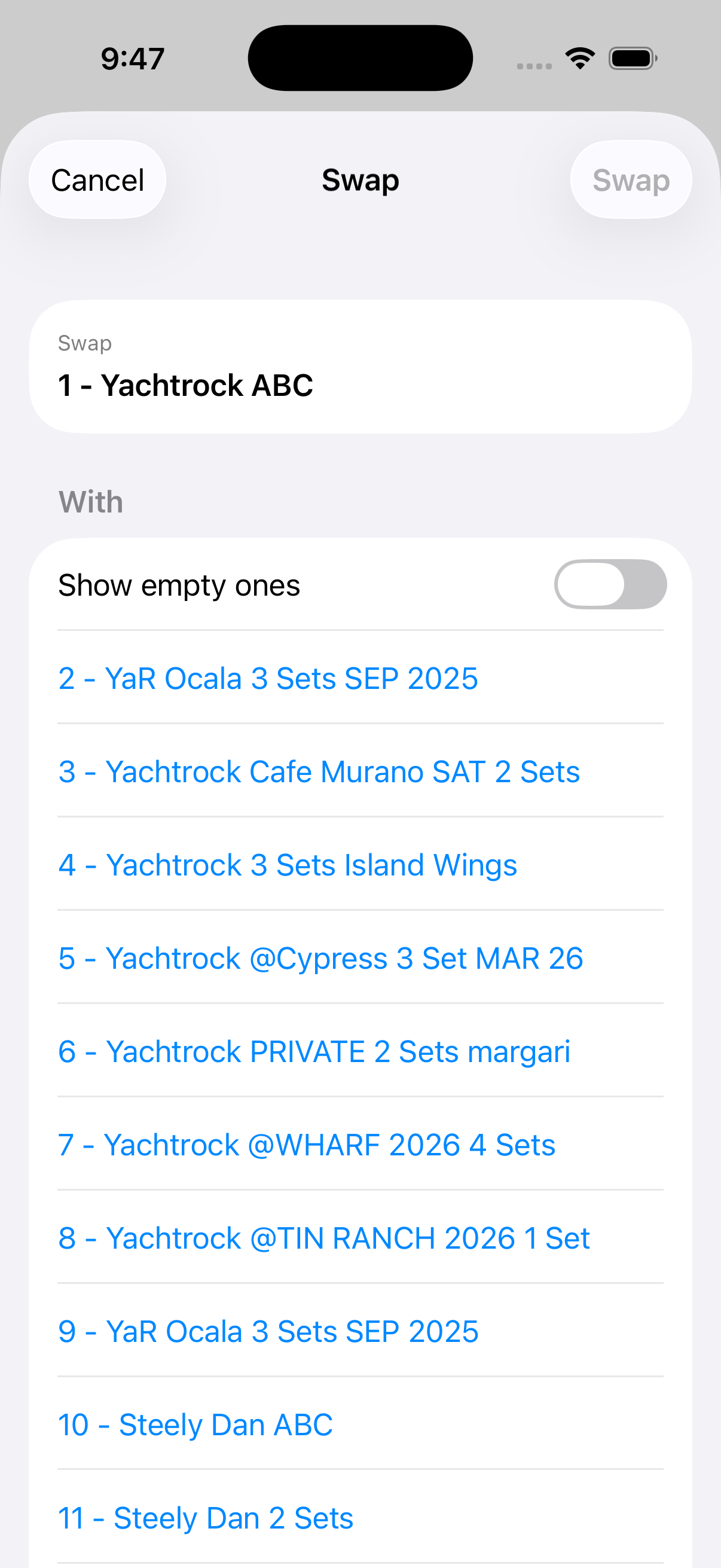
opens the set list in the editor. sends the running order through your device’s share function. Rename changes the title (max 32 characters, as the Fantom only allows that). creates into a slot — from empty, from text, or by copying an existing list. duplicates into another slot; exchanges two occupied slots. removes every scene but keeps the slot; Delete removes the list entirely. Empty slots offer only New Setlist… into that slot.
On smaller screens the menu is long — scroll to reach swap, clear, delete, and the rest. The walkthrough below uses Details off so row titles stay easy to read.
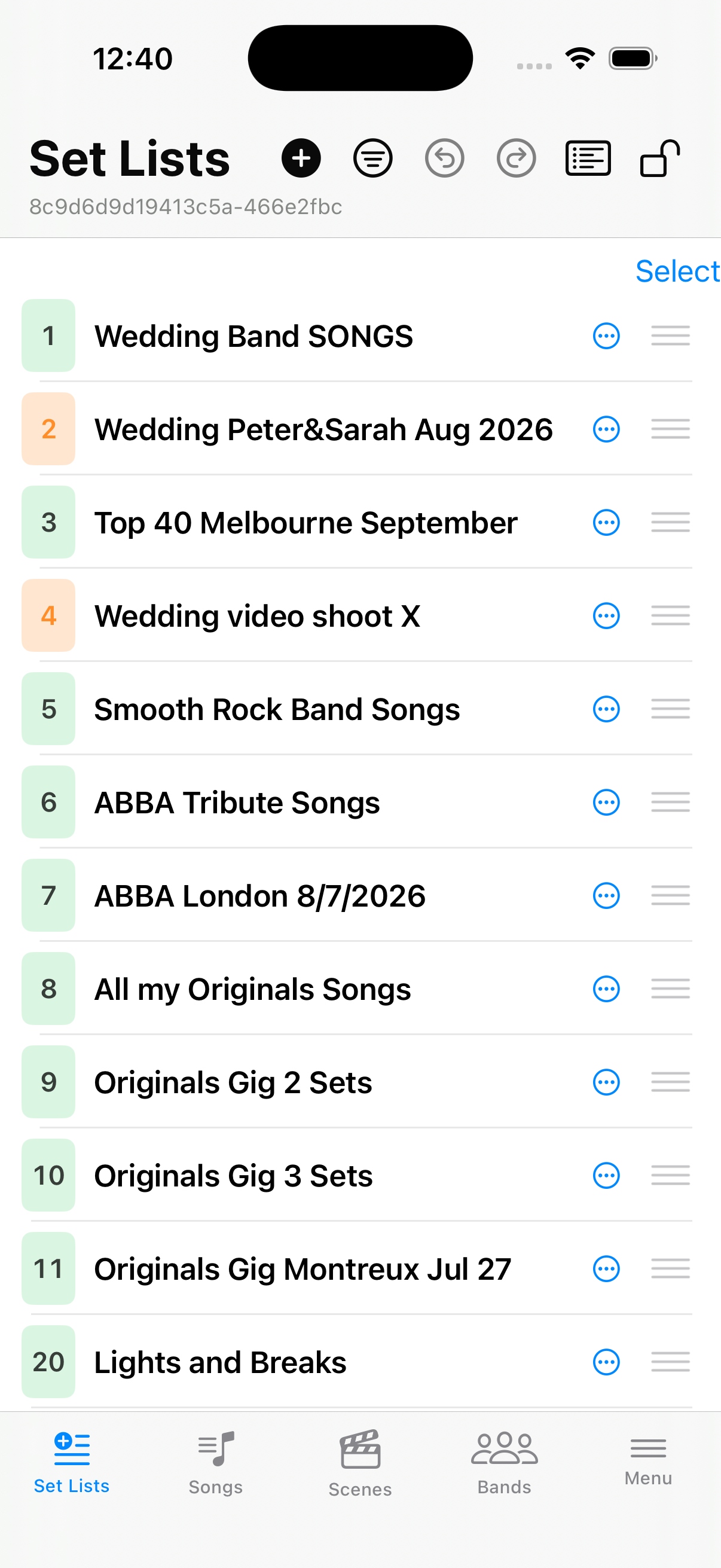
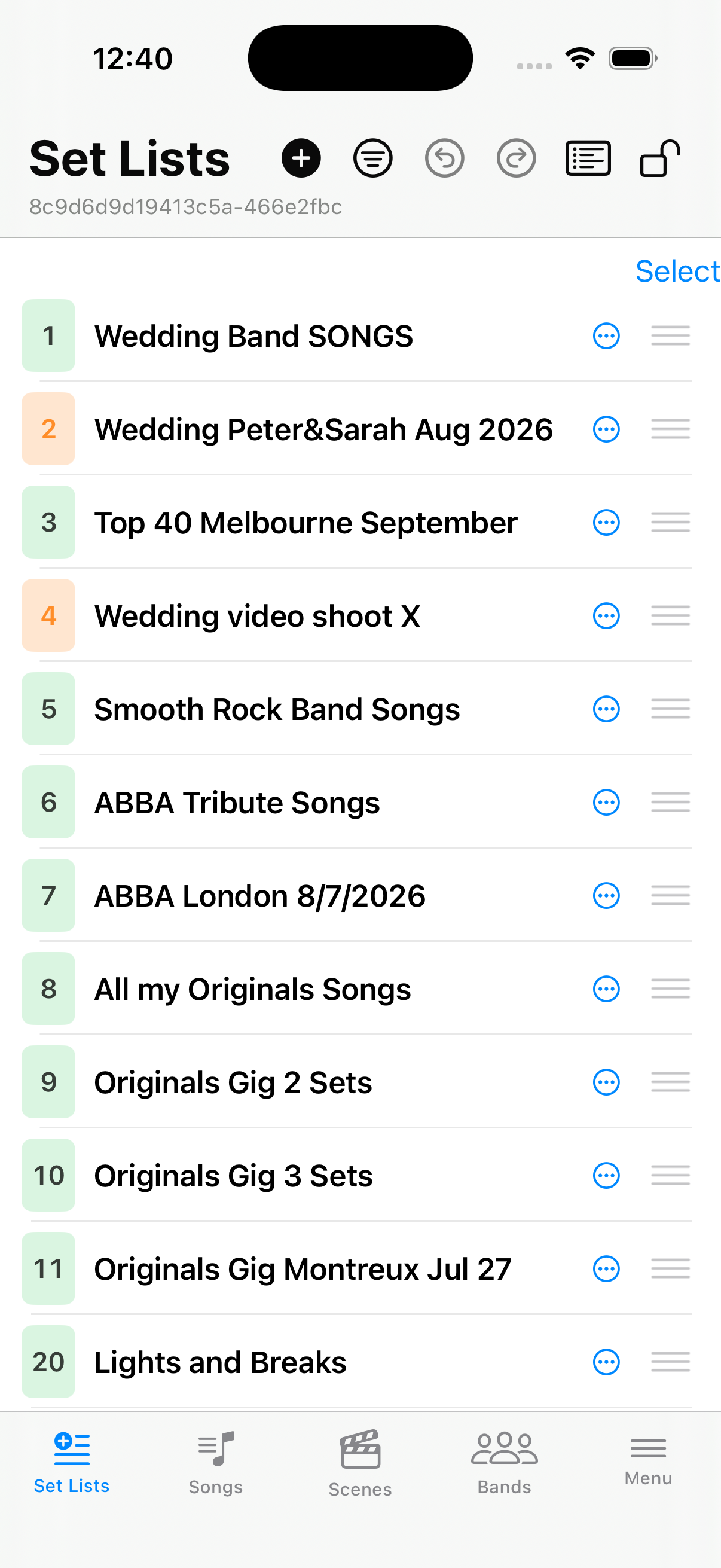
Before — the list
Your set lists as they stand before a menu action (Details off).
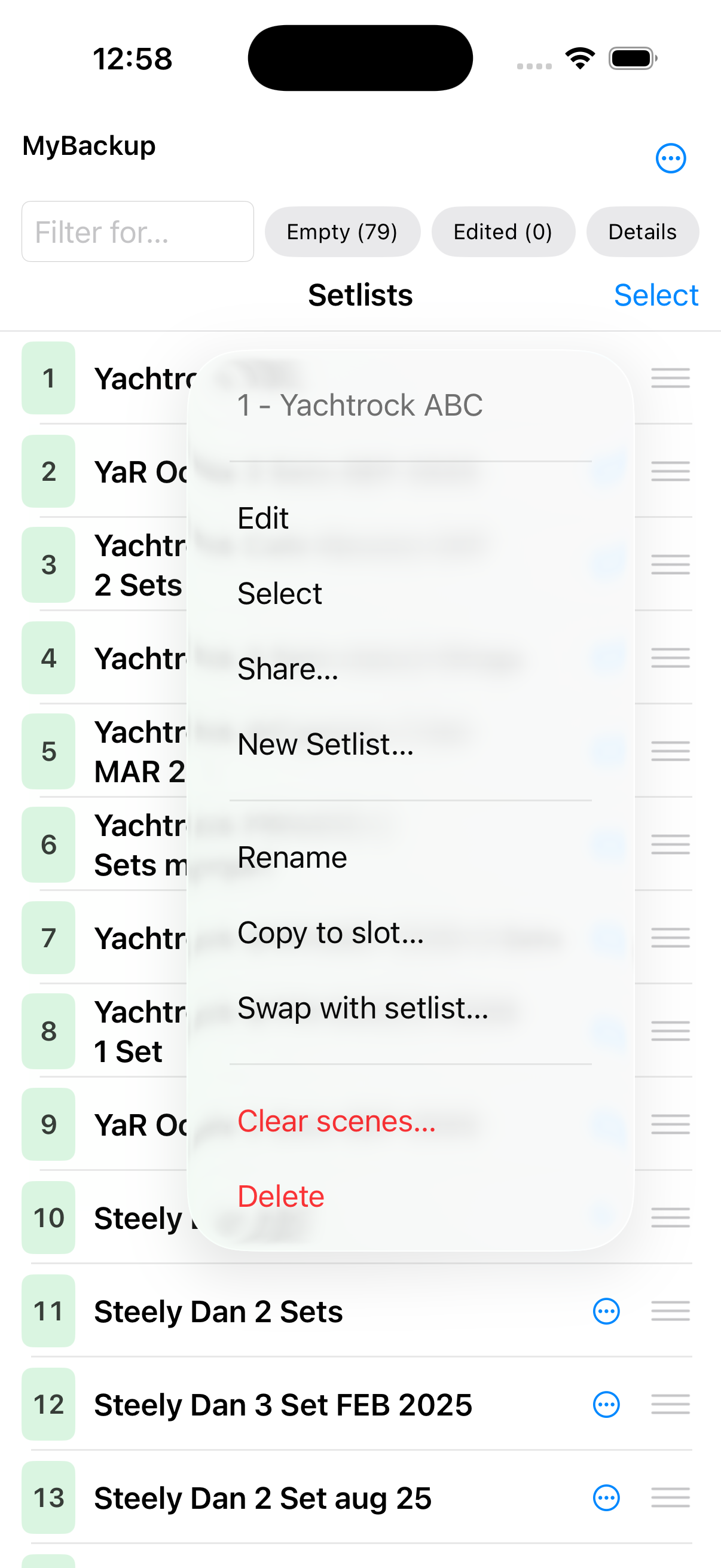
Open the context menu
From one menu: , Rename, , , , and Delete.
New Setlist…
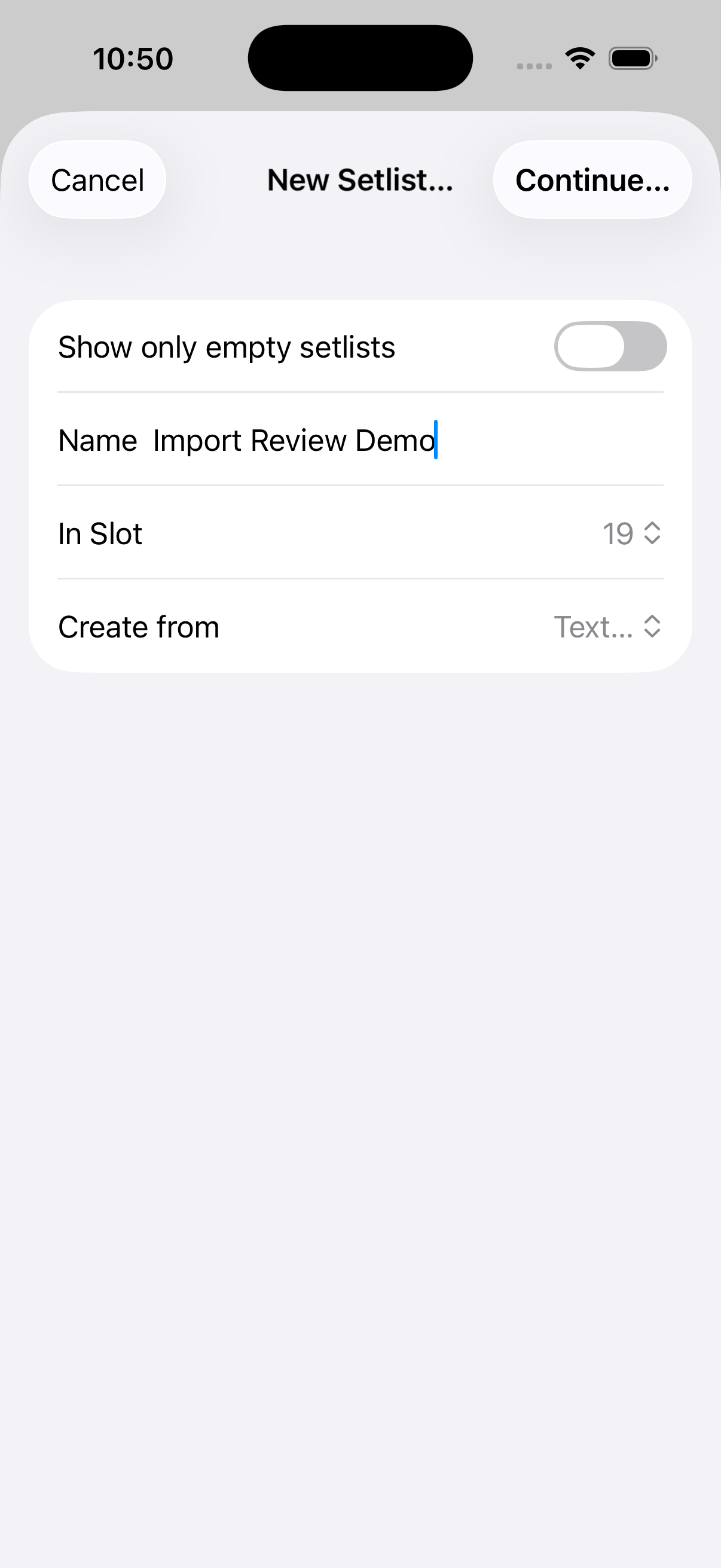
The  New button and open the same screen: name, slot, Create from Empty / Text… / existing set list.
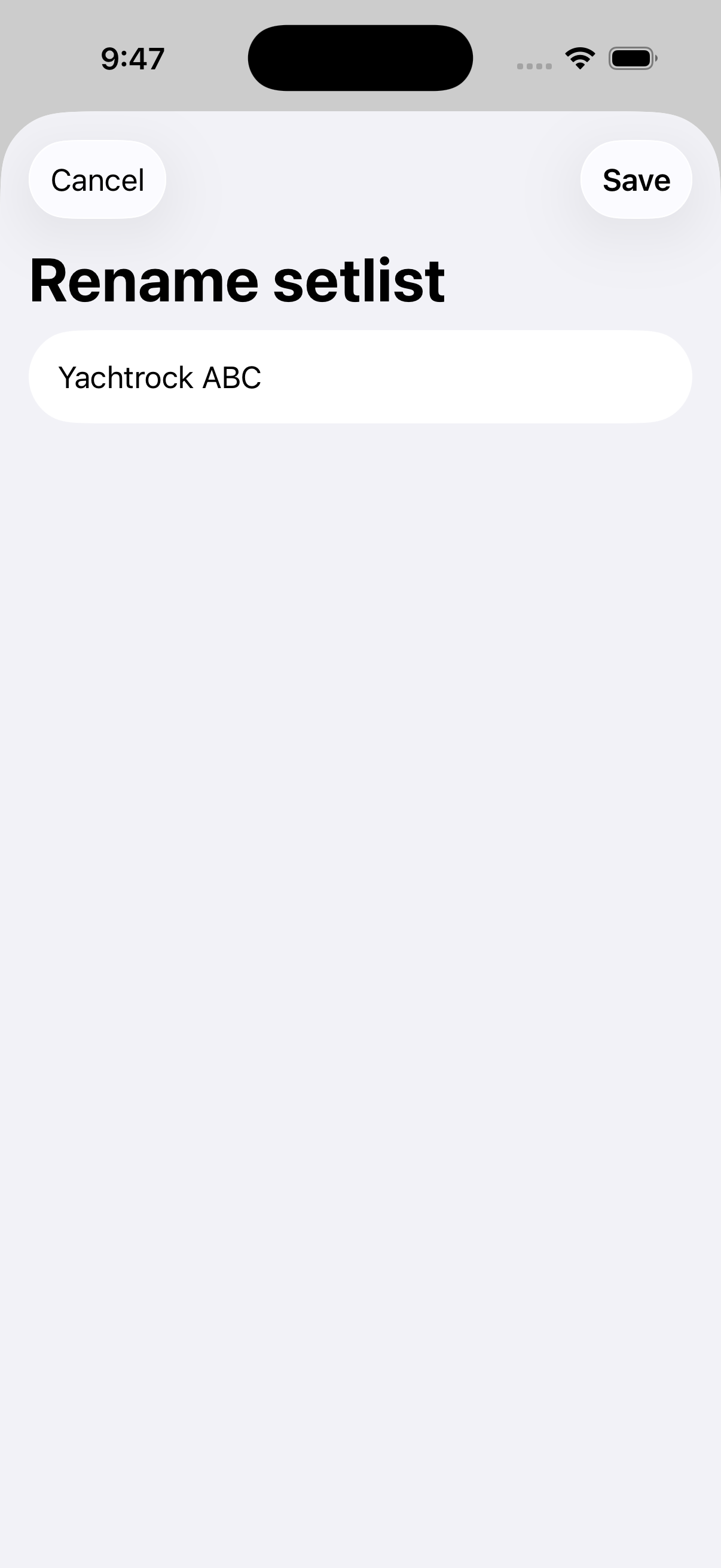
Rename — dialog and after
From the context menu, choose Rename. Enter a new title (max 32 characters, as the Fantom only allows that), then Save. The list shows the updated name.
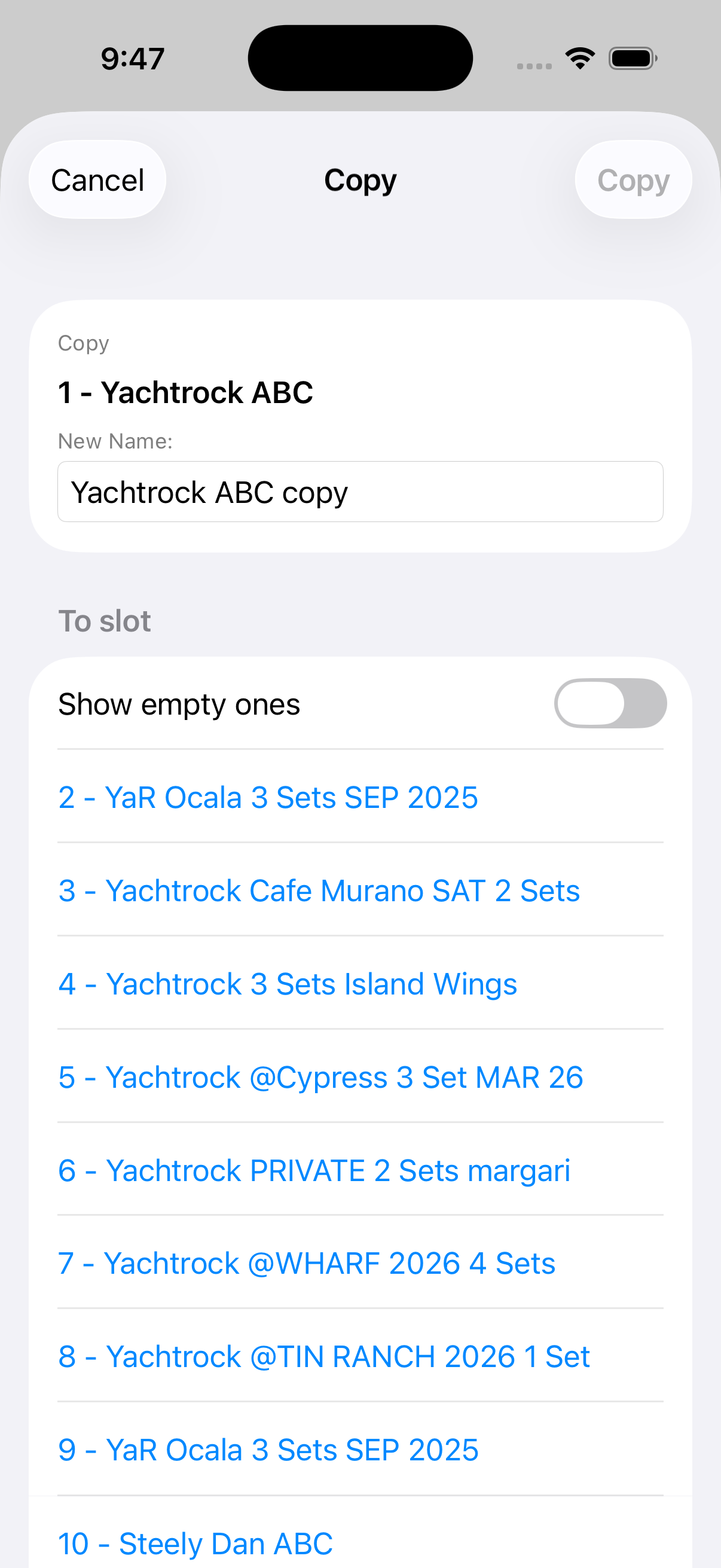
Copy or swap slots
From the context menu, and rearrange which slots hold which lists.
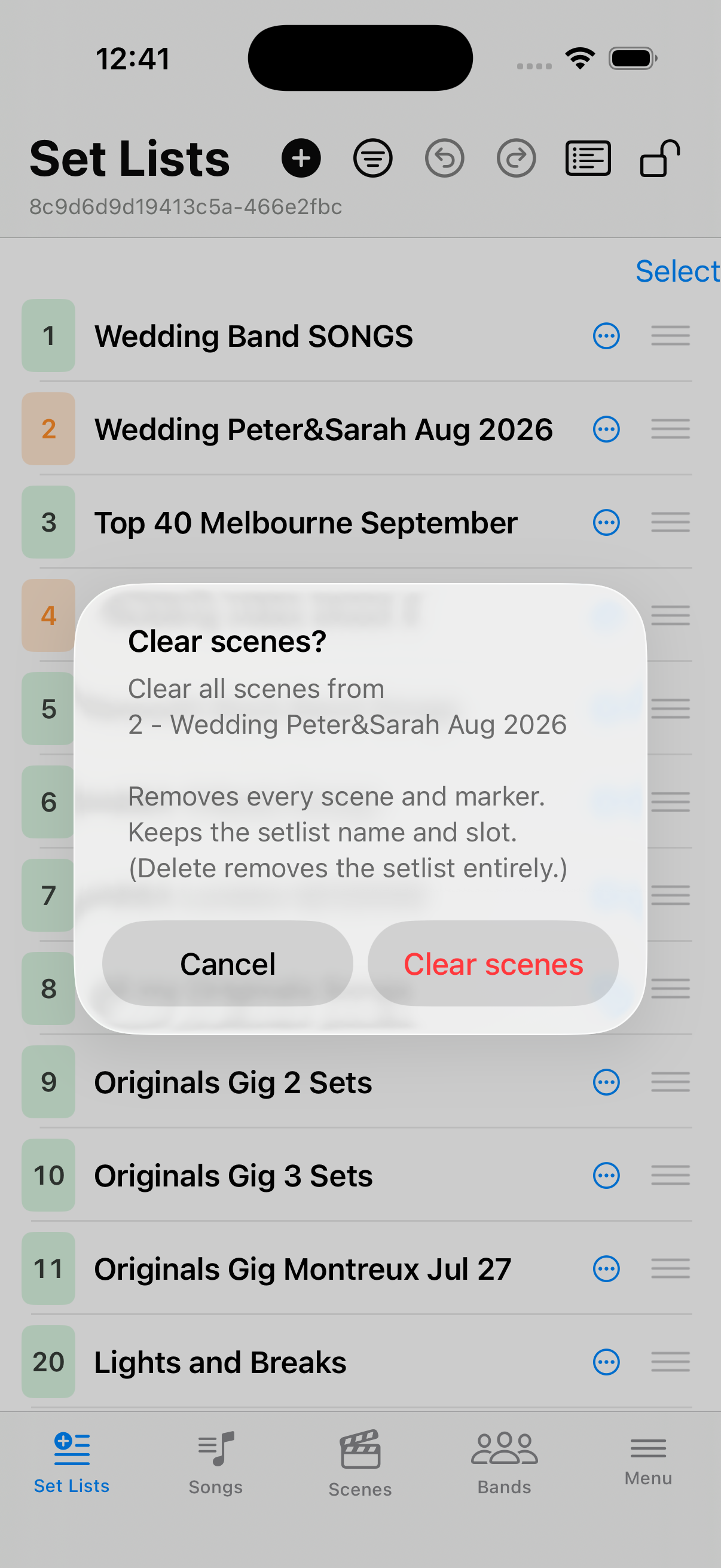
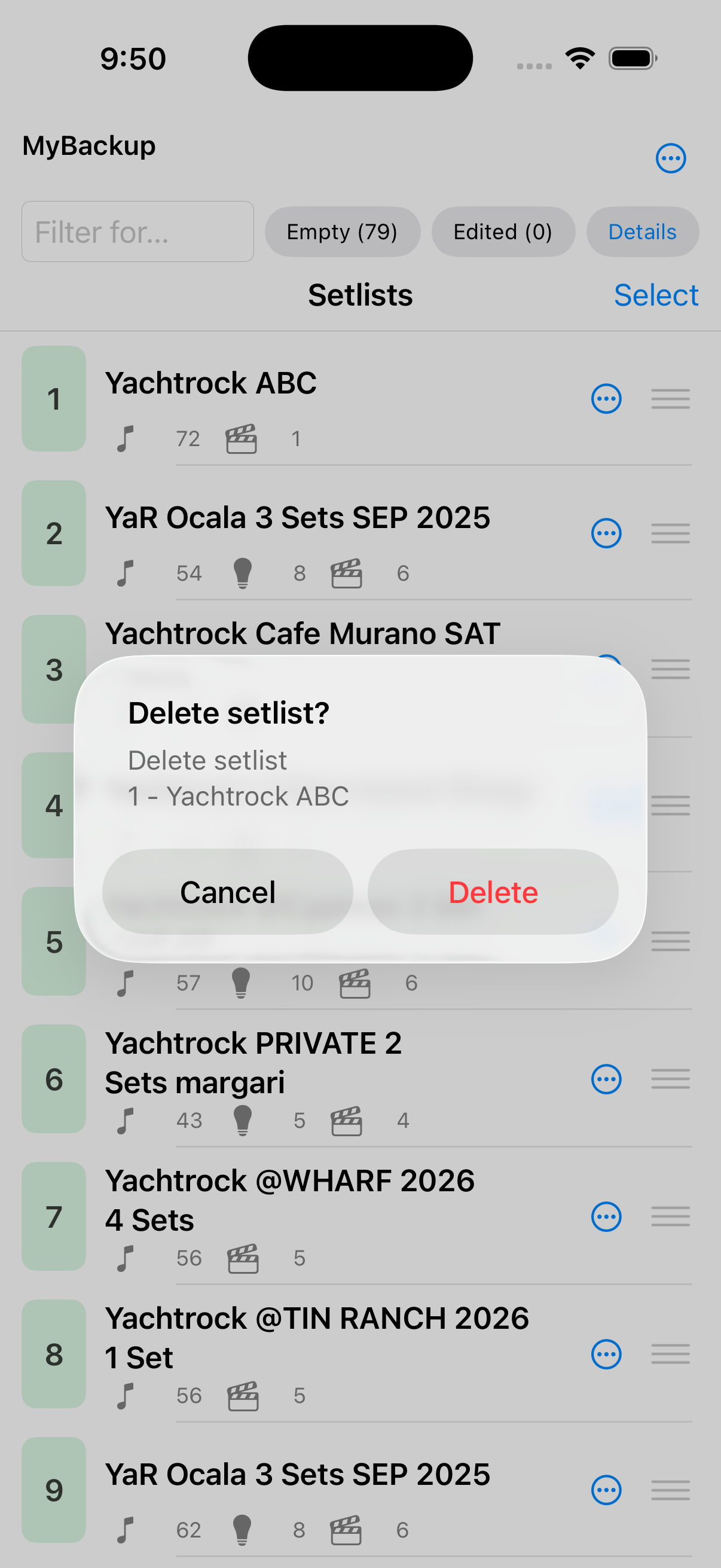
Clear or Delete — confirm
From the context menu, Clear or Delete asks once. Confirmations list n - name (and every checked set list when multi-selecting).