Overview / Settings
Settings
Settings control a lot of automated functionality within Fantom Set List Buddy. Let us explain them comprehensively here.
Tap  Settings on any screen within the Fantom Set List Buddy. On iOS devices, you will find a detailed description of the setting when tapping ? next to most section titles.
Open Settings
Tap Settings on the top right of any screen within Fantom Set List Buddy.
Cancel and Save
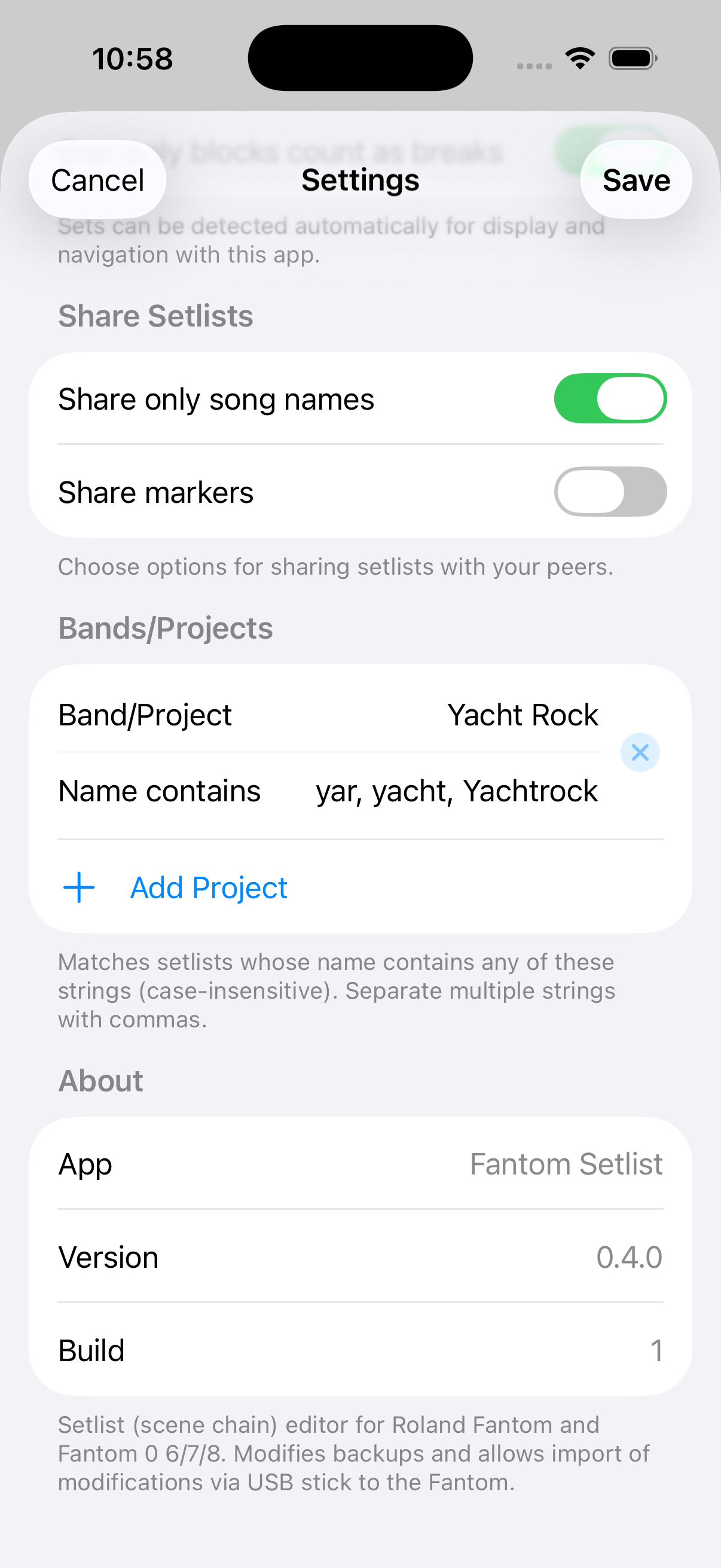
Settings opens as a screen with Cancel (top left) and Save (top right). Change what you need, then tap Save to keep the changes, or Cancel to leave without saving.
Folders
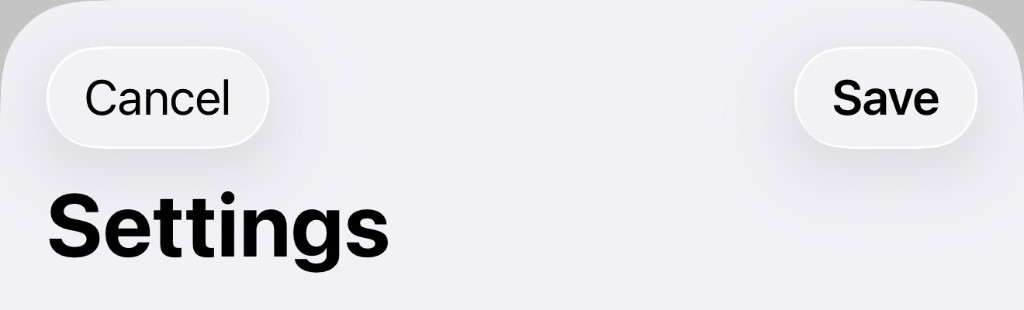
The Import folder is the Roland BACKUP folder that contains your Fantom backups (/ROLAND/FANTOM/BACKUP). The Export folder should be that same BACKUP folder on the USB stick — Export writes a new named folder beside the others. The Fantom only lists those subfolders under UTILITY → RESTORE (not the stick root, and not a separate EXPORT folder). The Set List import folder is where we look for text (.txt) or .csv files containing a set list you want to import and get matched against the available scenes within your Fantom.
Backup, export, and text set list folders.
Display Set Lists
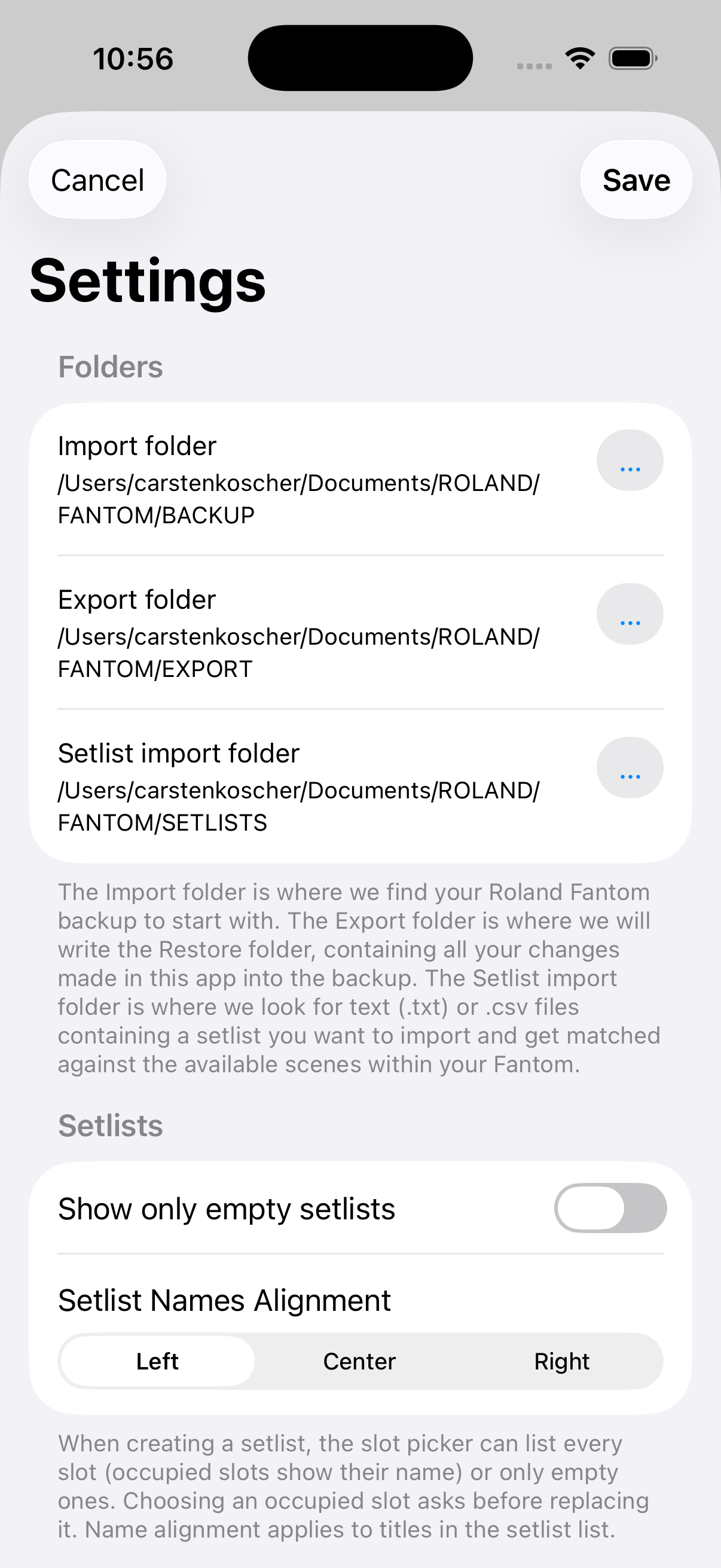
Set List Names Alignment (Left / Center / Right) applies to the set lists tab only.
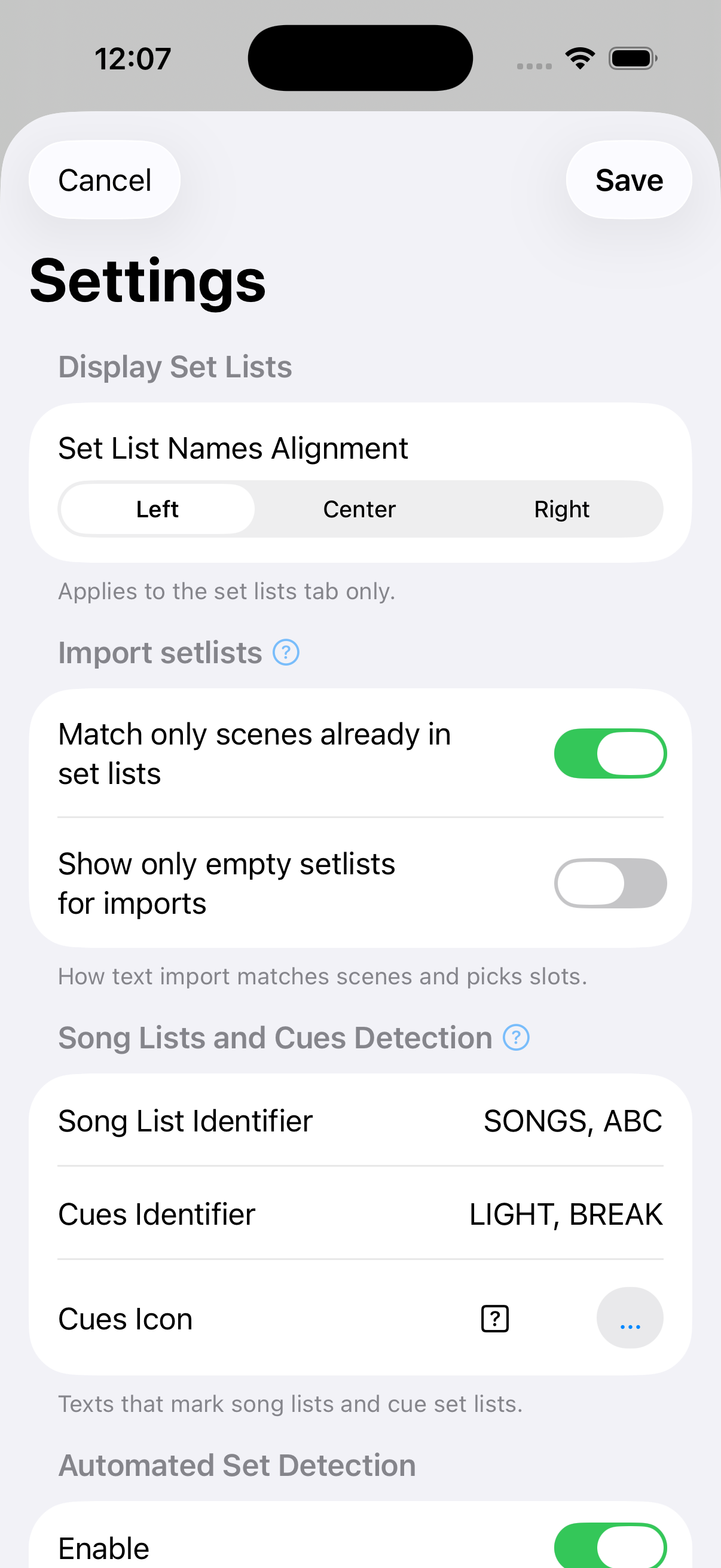
Import setlists
When matching is on, import will not match empty Fantom slots that happen to have a similar name. Turn that off to search all 512 scenes. Title → scene pairs you correct on import are remembered under the Songs tab and tried first on the next import. Show only empty setlists for imports limits the slot picker on text import (and New Setlist…) to free slots; turn it off to choose any slot 1–100, with an overwrite warning if occupied.
How text import matches scenes and picks slots.
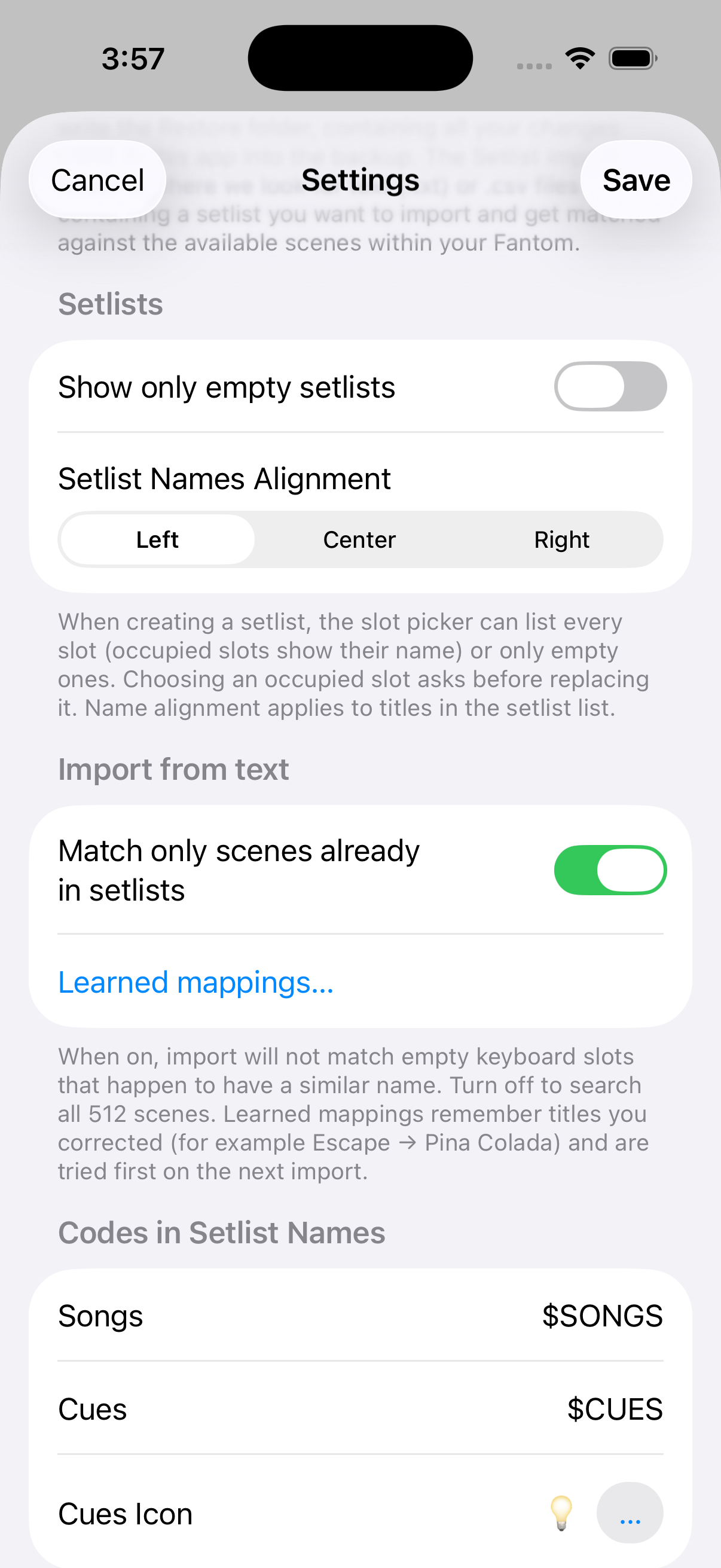
Song Lists and Cues Detection
Set Lists containing any of the texts above (comma-separated) are treated as lists of all songs in a band/project when importing set lists via text, or as cues, such as light scenes, pre-show and/or breaks between sets.
Texts that mark song lists and cue set lists. Tap … next to Cues Icon to pick the symbol used in Details counts.
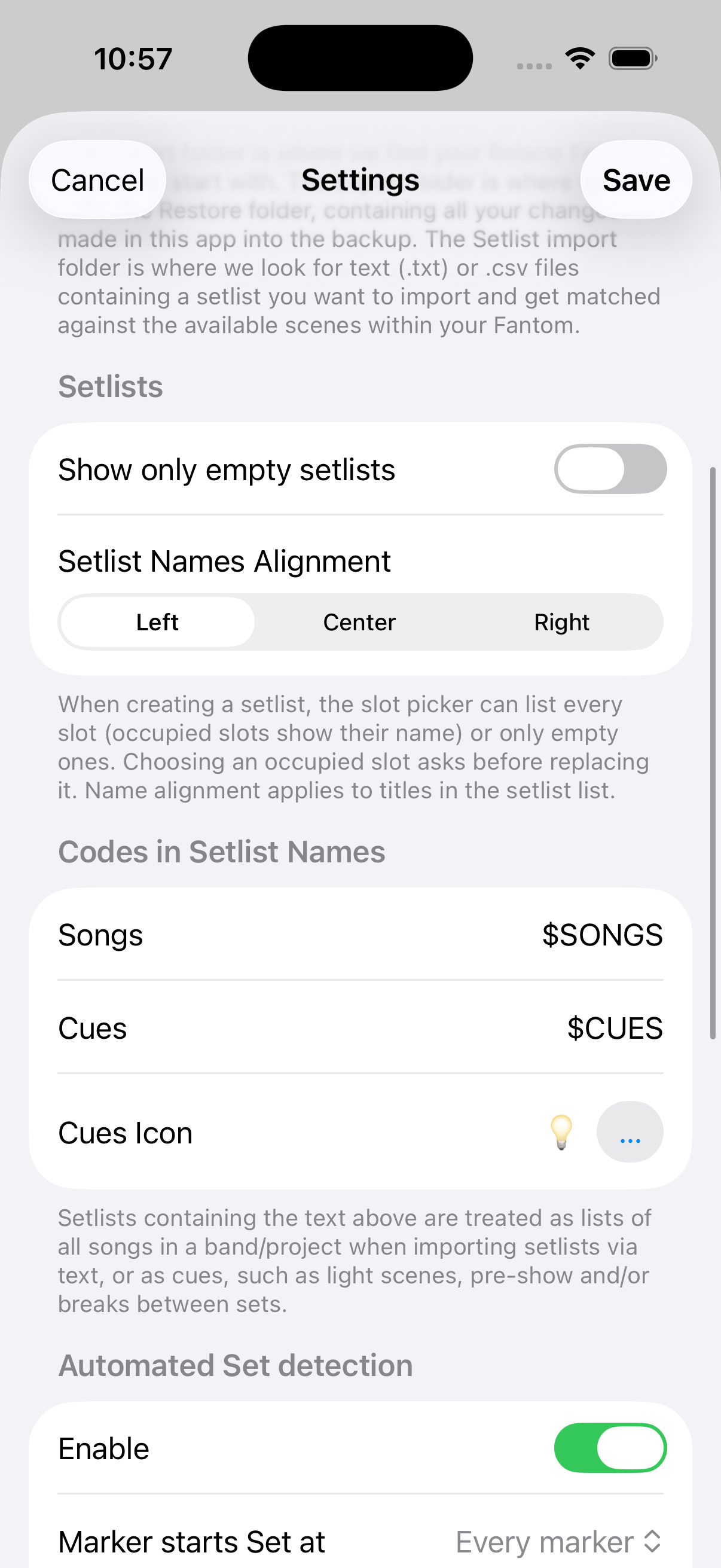
Automated Set Detection
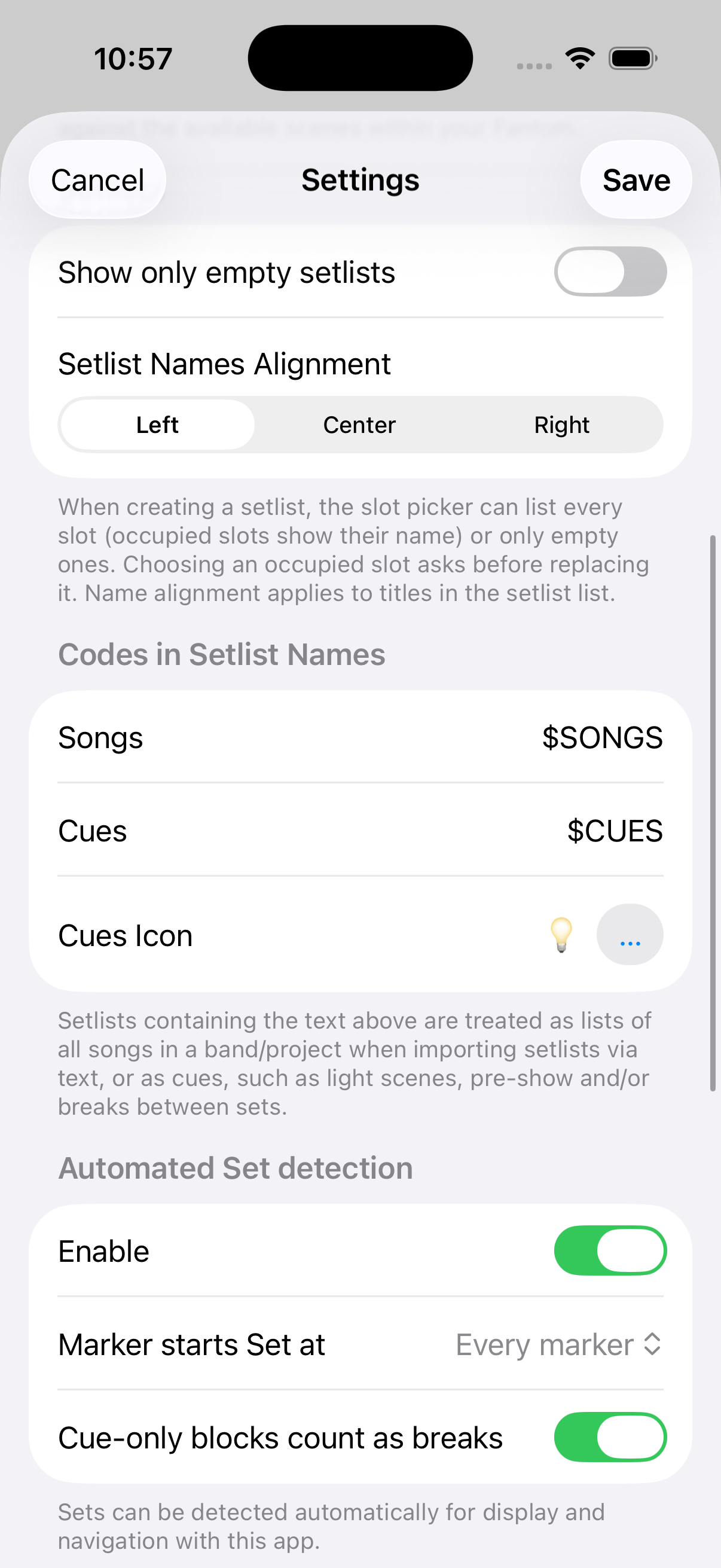
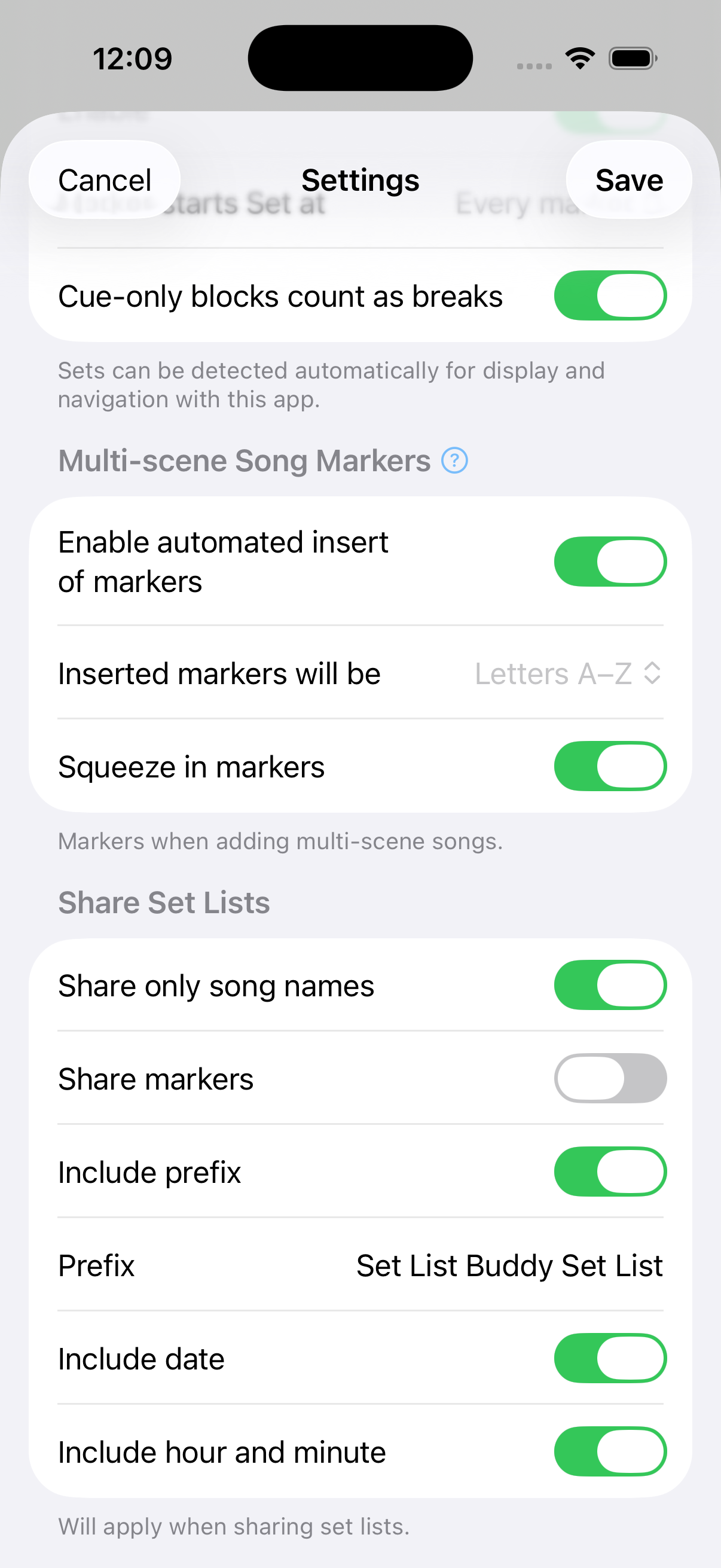
Sets can be detected automatically for display and navigation with this app. Choose whether every marker starts a set, or only number / letter markers, and whether cue-only blocks count as breaks. How rails, Share numbering, and Swap Sets… work is under Edit a Set List → Automated Set Detection.
Multi-scene Song Markers
When on, adding a multi-scene song can place markers (confirm offers with or without). Inserted markers will be letters or digits (keep set markers on the other series). Squeeze in markers renumbers later markers in that series so the new song fits in order — e.g. existing 4, 5 become 5, 6 when the song takes 4. While Squeeze in markers is on, the series picker is locked; turn it off to change Letters / Digits / a–z.
Markers when adding multi-scene songs.
Share Set Lists
Share only song names, Share markers, and the prefix / date / time options will apply when sharing set lists.
Share Song Mappings
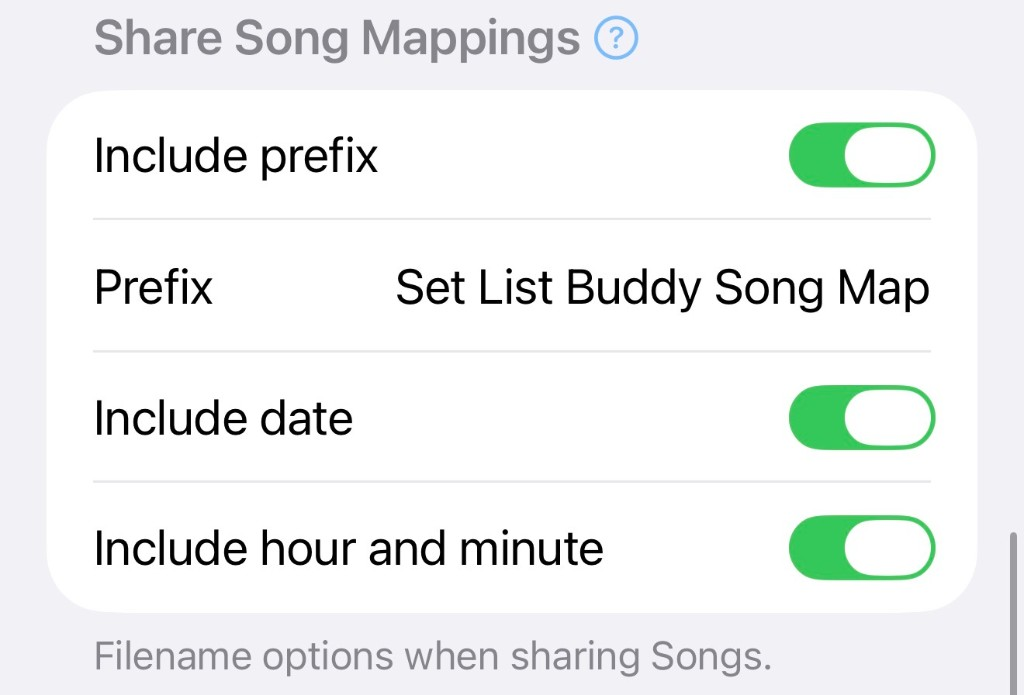
Songs Share exports a .json file in the same format Load accepts (version + mappings). Prefix / date / time only rename the file. Filename options when sharing Songs.
About
Set List (scene chain) editor for Roland™ Fantom™ 6/7/8 (incl. EX) and 06/07/08. Modifies backups and allows import of modifications via USB stick to the Fantom.
Reset… removes the in-app backup copy and resets the app like a fresh install. Use this when returning this app to its initial installation state. Your Fantom and folders on disk are untouched. Optional checkboxes clear Songs, Bands, or remembered folders.