Choose backup
Pick a Fantom backup from Files / USB. On iPhone the app stages a full copy so you can unplug the stick.
iPhone · iPad
Build and rearrange Scene Chain setlists from your Roland Fantom 0 backup, then export a new folder for USB Restore — without rewriting scene tones.
The editor is the app — no multi-backup home screen. You work against one active Fantom backup
plus a quiet XML-only draft. Scene names always come from the original FANTOM.SVD.
Pick a Fantom backup from Files / USB. On iPhone the app stages a full copy so you can unplug the stick.
Reorder scenes, markers, sets, and cues. Edits write draft chain XMLs as you go. Save is a checkpoint.
Copy the backup + your draft XMLs into a new folder. Never overwrites the source.
Show setlists are tonight’s order. Songs / ABC pools are your repertoire book.
Cues pools (e.g. Lights $CUES) mark utility scenes — lights, FX, breaks — so they are not counted or shared as songs.
Put the Settings Songs token in a setlist name (ABC or $SONGS) to make a catalog the app matches against when you
Import from text…. Put the Cues token (default $CUES) on a pool like
Lights $CUES; any of those scenes that also appear in a show setlist count as 💡 cues,
drop out of “songs only” Share, and can form Pre/Break/Post blocks in Automated Set Detection.
Each feature: what it is for, then the related screens. Full guide:
docs/user-manual.md.
First open on a real device: docs/user-manual-starter.md.
Have a Fantom backup folder on USB or in Files
(FANTOM.SVD + SCENE_CHAIN/). Open the app → Settings… set
Import / Export folders → Choose folder… →
highlight the backup → Select. Wait for the in-app copy, then you can unplug.
Tap a setlist to edit; later ⋯ → Export to USB… writes a new folder for Restore.


On the keyboard, MENU → UTILITY → BACKUP writes a named folder to USB
(see Roland FANTOM-06/07/08 Owner’s Manual — Backing up User Data (Backup/Restore), ~p. 34).
Check or clear INCLUDE PAD SAMPLE / INCLUDE KBD SAMPLE for a full vs small backup.
This app edits SCENE_CHAIN/ inside that folder; Export builds a new folder for RESTORE.


Use this the first time, or when you want a different backup. Set Import / Export folders in Settings, then Choose folder…. Tap to highlight, double-tap to open, Select to import. On iPhone the app stages a full copy so you can unplug USB.


This is home. Tap a setlist to open it. Session ⋯ covers create, band filter, Save, Export, View original, switch backup, Undo, and Settings. Sheets close with Cancel, Back, or Close — not by dragging down.


Use Details when titles alone are not enough. Off = names only. On = project line plus ♫ songs · 💡 cues · 🎬 sets. (Inside an open setlist, Details means bank/patch brackets instead.)


Use Show Bands/Projects… after you define projects in Settings. Pick All or a band to narrow the list.


Use Filter for… for name or slot. Empty shows empty slots. Edited keeps only what you touched this session. Select for multi actions. Drag ⠿ to reorder (clear text/Empty/Edited filters first).


Use the setlist row ⋯ (or long-press). The top line is the setlist name (not an action). Each action opens its own sheet or confirm.


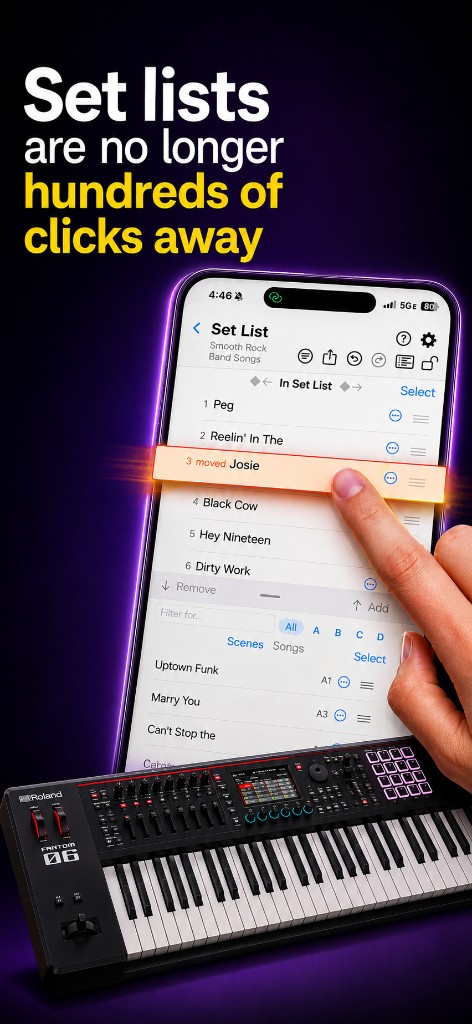
Open a setlist to order the night. Drag ⠿ to reorder. Drag the transfer handle to show the scene library — portrait stacks ↑/↓; landscape is side-by-side ←/→. On Scenes, use Filter for… plus bank toggles A · B · C · D or All (four Fantom banks of 128; at least one bank stays selected). Songs has its own Filter for… / Details. Drag a scene’s ⠿ onto Songs to add (or a song’s ⠿ onto Scenes to remove).


Use song ⋯ for Cut/Copy/Paste, Info… (BPM, layers, memo, setlists), Swap Scene / Marked Block / Sets, Select by Number, and markers. Swipe is Remove only. On iPhone, scroll the menu — not every action fits on screen at once.


Use Share… to send a text preview via the system share sheet. Share only song names (default on) leaves cues out.
Use New Setlist… → Create from → Text… when you have a pasted list or a
.txt / .csv. Match, review, then create (undoable).


Use Undo… to reverse changes made over multiple steps in this session — not only the last tap. Open from session or editor ⋯. Newest at the top; Undo to here jumps back; Undo all clears the stack (Redo still available until you edit again). Discard all… is different: throw the draft toward the original backup.


Use Export to USB… when the show is ready. Writes a new folder only — never your source backup. On iPhone, Export shows progress (file · bytes) with Cancel. Then stick → Fantom UTILITY → RESTORE → power cycle.
Use Settings to set folders, Songs/Cues codes, automated set detection, share defaults, and bands once — then every session follows those choices.


…/FANTOM/BACKUP/MyBackup/ includes slot 18 · Lights $CUES
(LIGHT OFF / WHITE / START SET / RED BREAK + FX/Pad menus).
Re-open sample / re-seed Simulator after updating that folder.